

Billionaire Life DLC
Fine Art
Turn famous paintings into a personal asset you can collect, trade, and show off — then donate a great collection to your own museum and build your standing as a generous, cultured billionaire.
Fine Art makes real-world masterpieces a living market. Great works by real artists rise and fall in value over the years, and a serious collection can be resold for profit or gifted to the public for lasting prestige.
Requires the Billionaire Life DLC
Fine Art only appears when this DLC is enabled and the Fine Art option is turned on for the game (see Starting a game with Fine Art below). Art is bought and sold with your personal cash, not your company’s money.
How the art world works
- The art world is made up of paintings. Each is by an artist, and every artist belongs to an art movement such as Impressionism or Cubism.
- Every painting has a Market Price — its current worth — and a Selling Price, the amount the owner is currently asking for it.
- Prices change over time. You can follow each painting’s, artist’s, and movement’s Price History graph, and see whether an artist or movement is currently rising or falling from its Price Trend arrow.
- You interact with art through three kinds of buildings:
| Building | What it’s for |
|---|---|
| Art Gallery | Browse, buy and sell paintings. The main marketplace, and the screen described in this guide. |
| Auction House | Bid against other collectors on individual works — where the most sought-after pieces tend to change hands. |
| Art Museum | Exhibit art you donate. Earns prestige and visitors; you don’t sell art here. |
Starting a game with Fine Art
When you start a new game with the Billionaire Life DLC, the DLC setup page has a Fine Art switch (set it to Yes) and a row of options. Each is a slider from Very Low to Very High (default Moderate):
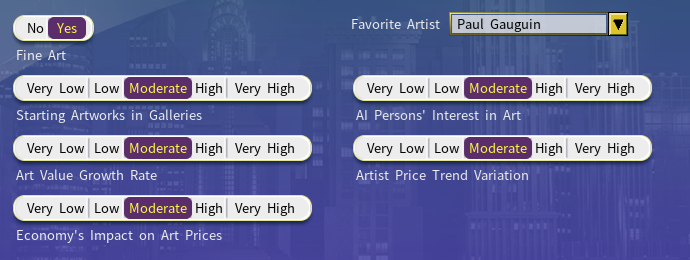
| Setting | What it changes |
|---|---|
| Starting Artworks in Galleries | How many paintings are already on the market when the game begins. |
| AI Persons’ Interest in Art | How many wealthy AI characters collect art and open galleries and museums. |
| Art Value Growth Rate | How fast paintings appreciate overall. Higher = art gets pricier, faster. |
| Artist Price Trend Variation | How differently individual artists perform. Higher = bigger winners and losers. |
| Economy’s Impact on Art Prices | How strongly booms and recessions move the art market. |
Hover the (?) next to any option for an in-game reminder. You can leave them all on Moderate for a balanced experience.
The same page also has a Favorite Artist drop-down. Pick a specific artist, or leave it on Random and the game chooses a real one for you at the start. Your favorite artist earns you a rising satisfaction bonus as you build a fuller collection of their work — and, once you’re playing, you can set the Auction House to notify you only about that artist’s auctions (see Buying art at auction).
First, build your own Art Gallery
You must own an Art Gallery before you can buy any painting. Every purchase is delivered into your own gallery, so building one is the first step into the art world — if you click Buy Art without one, the game tells you to build an Art Gallery first.
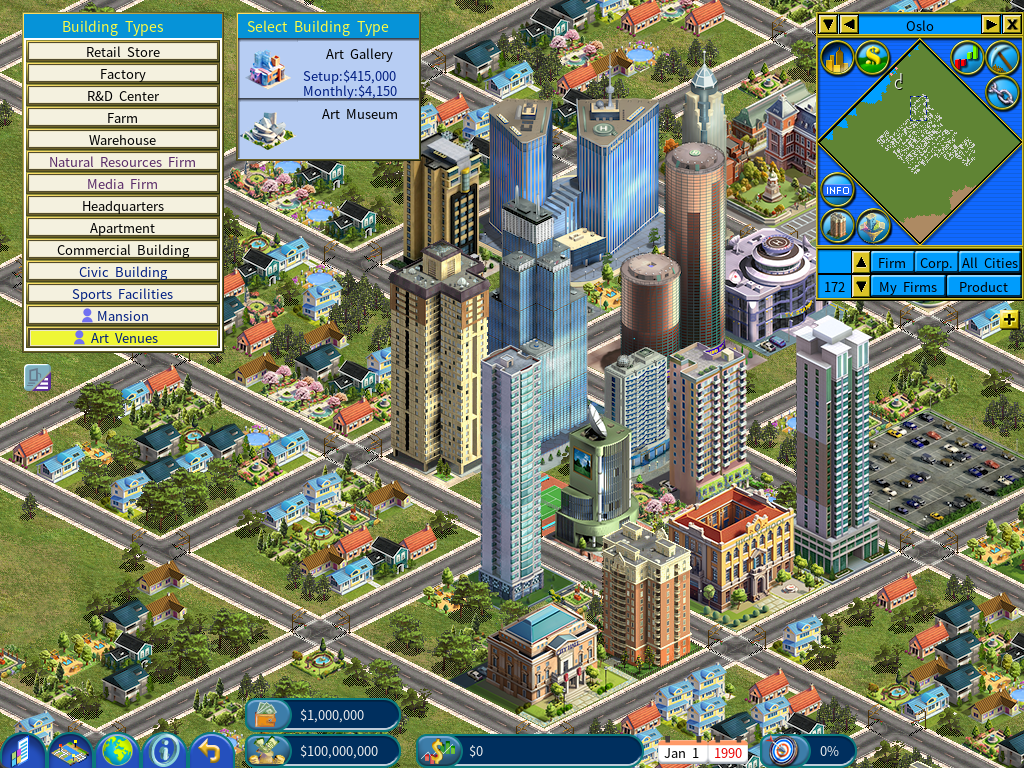
Once your gallery is up, you can browse the market, buy paintings into it, reprice and resell them, and study artists and movements — all from the screen described next.
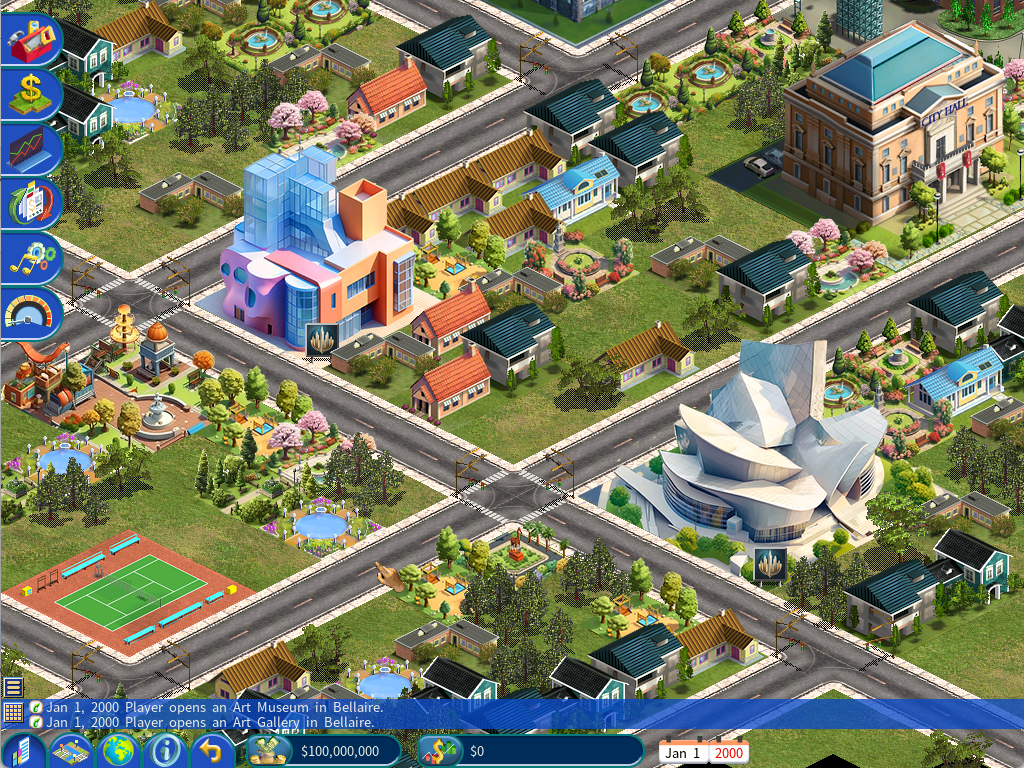
The Art Gallery screen
Click any Art Gallery to open its detail screen. The top of the window always shows who owns the gallery (portrait and name) plus two small graphs — Art Pieces (how many works the gallery holds) and Market Value (the collection’s total worth), both over the Past 30 Years. Below that are five tabs:
| Tab | What you do there |
|---|---|
| Art Catalog | Browse every painting in the gallery as a grid of thumbnails, and buy. |
| Art Details | Inspect one painting up close — price, price history, and its full transaction record. |
| Artists | See the artists represented, each with a price trend and a profile. |
| Art Movements | The same view, grouped by art movement. |
| Sales History | Every painting this gallery has sold, with the profit or loss on each. |
Art Catalog tab
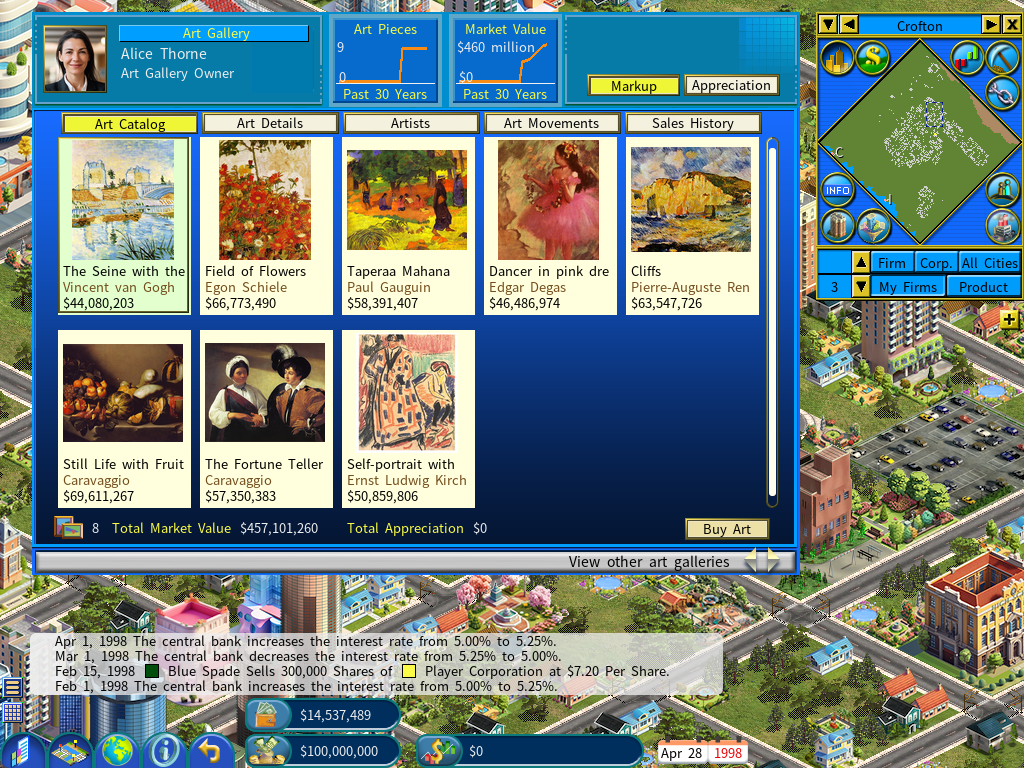
The catalog shows each painting as a thumbnail with its title, artist, and Selling Price. Next to the price a green ▲ or red ▼ shows a percentage, and the Markup / Appreciation toggle at the top-right chooses which:
- Markup — how far the asking (Selling) Price sits above or below the painting’s Market Price. A high markup means you’re paying a premium today.
- Appreciation — how much a painting has gained since it was bought. (Only shows for works with a known purchase price; otherwise it reads $0.)
A painting the owner has withheld shows Not For Sale in place of a price. Along the bottom you’ll see the total number of art pieces, the Total Market Value of the gallery, and its Total Appreciation. When you’re viewing someone else’s gallery, a Buy Art button sits in the bottom-right. Double-click any thumbnail to jump to its Art Details.
Art Details tab
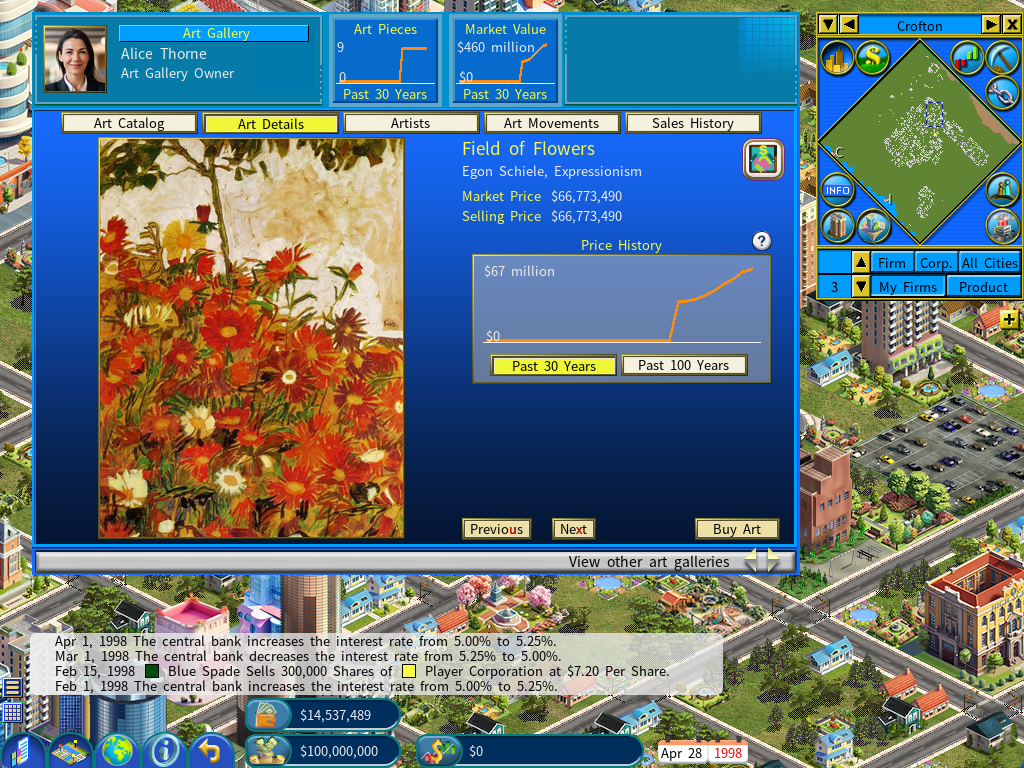
This is the single-painting view, with a large image on the left and its figures on the right:
| Shown here | Meaning |
|---|---|
| Title, Artist, Movement | What the piece is and where it belongs. |
| Market Price | The painting’s current worth. |
| Selling Price (+ %) | The current asking price, with its markup above/below market. |
| Purchase Price / Appreciation | What the owner paid and how much it has gained (shown once the piece is owned). |
| Price History graph | The price over the Past 30 Years or Past 100 Years — toggle beneath the graph. |
Use Previous / Next to page through the gallery’s paintings without leaving this view. Buy Art appears when it isn’t your gallery; Donate Art appears when it is.
Pricing your own paintings
When you’re viewing a gallery you own, the Art Details page lets you manage each piece:
- Adjust the Selling Price with the + / − buttons (they step by 1% and 10%), then click Confirm to apply it.
- Tick Not for Sale to pull a painting off the market and hold it.
Newly bought art is set to Not for Sale by default. To offer a piece for resale, open its Art Details, set a Selling Price, and clear the Not for Sale box.
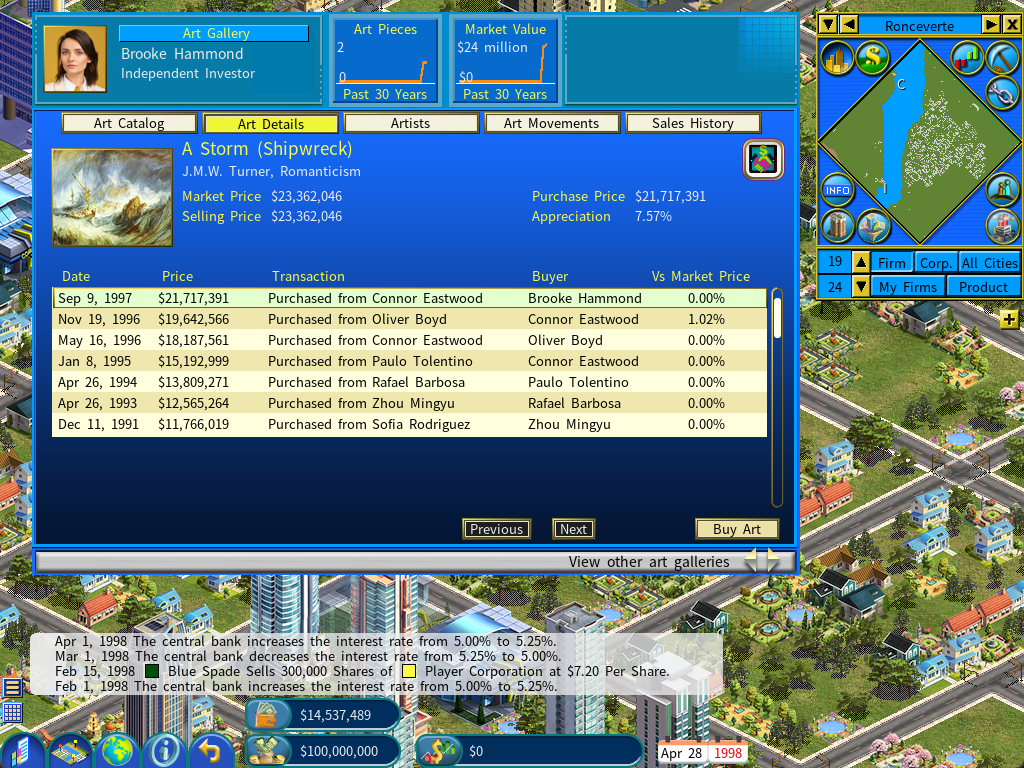
Expanded Transaction History
Click the Expanded Transaction History icon in the top‑right corner of the Art Gallery window to view a more detailed list, including the seller and each sale’s price compared with the Market Price.
Artists & Art Movements tabs
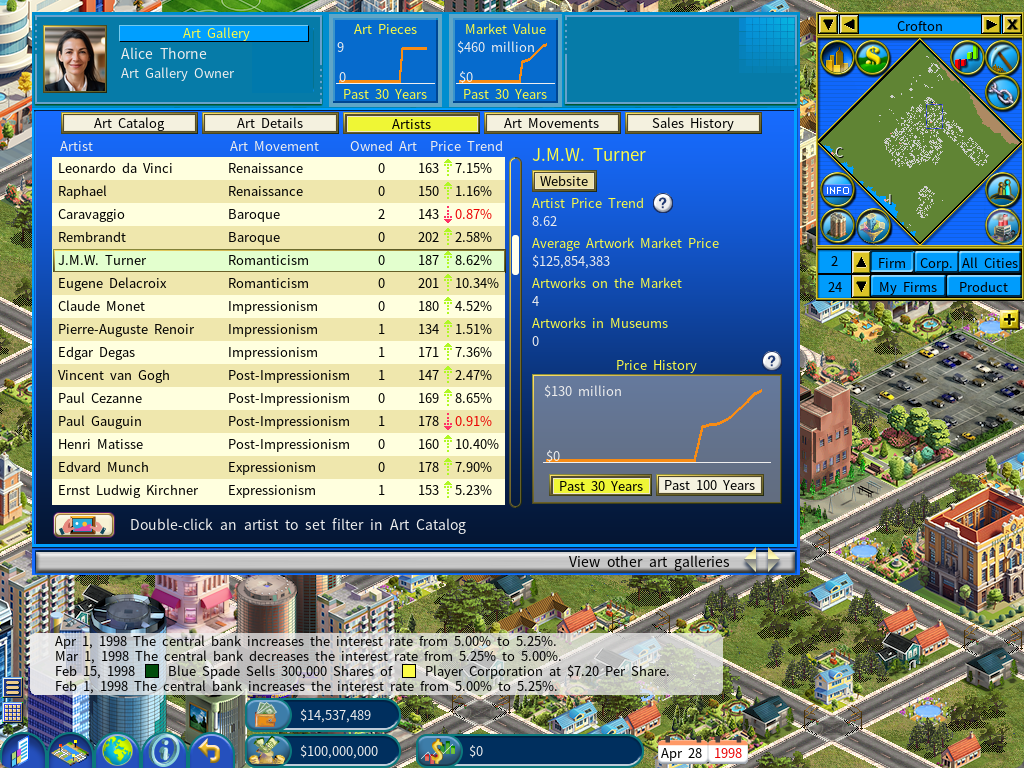
These two tabs list the artists (or movements) represented, with an Owned Art count and a Price Trend.
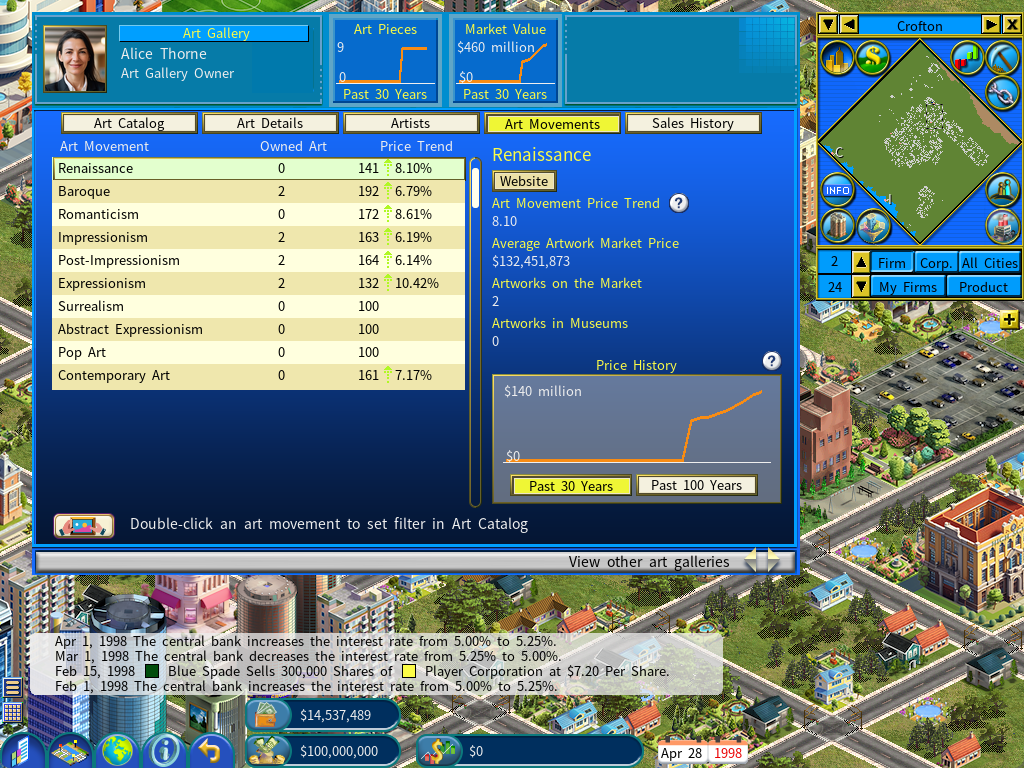
The Price Trend is a value with a green ▲ or red ▼ arrow telling you, at a glance, whether that artist’s or movement’s prices are currently rising or falling. Select a row to open a profile panel showing:
| Profile figure | Meaning |
|---|---|
| Artist / Art Movement Price Trend | The current direction and strength of its prices. |
| Average Artwork Market Price | Roughly what one of its paintings is worth. |
| Artworks on the Market | How many of its works are currently available to buy. |
| Artworks in Museums | How many have been donated away into museums. |
| Price History graph + Website | Its long-term price trajectory, plus a link to read more about the real artist or movement. |
The Artists tab also shows a portrait and short biography. Use the owned-only button to hide everyone you don’t currently hold, and double-click an artist or movement to filter the Art Catalog down to just their works — handy for focusing a collection.
Filters: once you’ve double-clicked to set an Artist or Art Movement filter, a row appears at the bottom of the Art Catalog with a checkbox so you can toggle the filter on and off.
Sales History tab
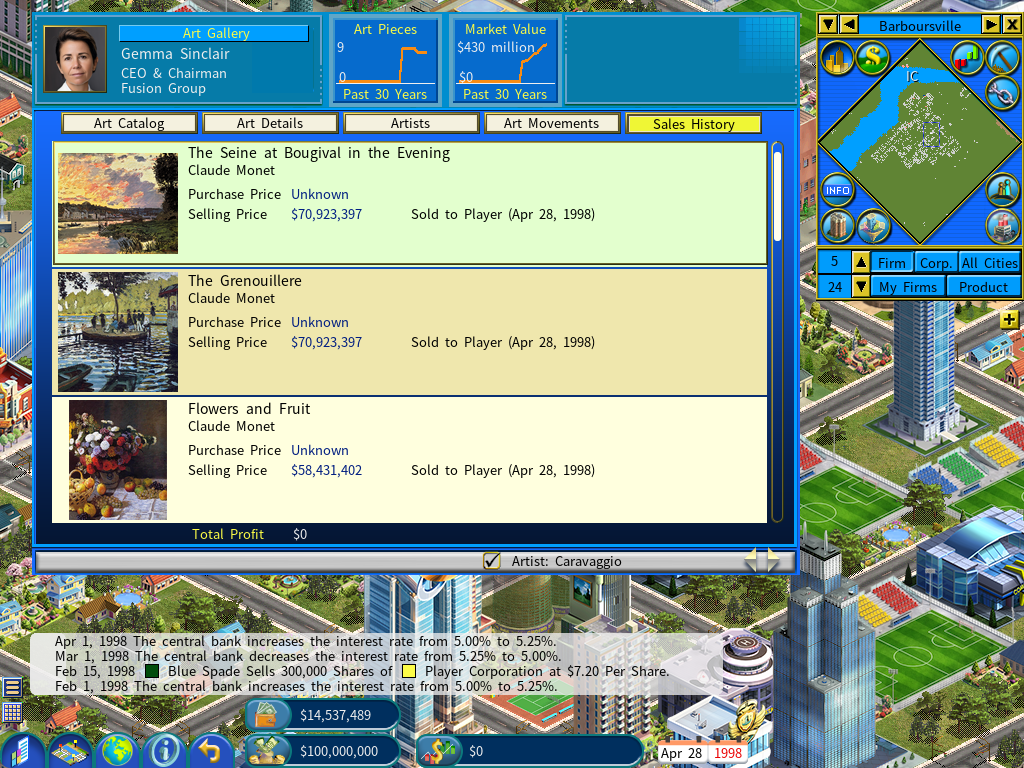
This lists every painting the gallery has already sold. Each entry shows the thumbnail and title, the Purchase Price (and who it was bought from, or “Acquired at Auction House”), the Selling Price (and who it sold to), and the resulting Profit or Loss in both cash and percent. The gallery’s Total Profit is totaled at the bottom. Double-click a row to jump to the painting if it’s still being tracked.
Buying art at a gallery
Remember you need your own Art Gallery first (see above). Once you have one, open any gallery you don’t own, pick a painting, and click Buy Art (on either the Art Catalog or Art Details tab). The game confirms your personal cash and the price before you commit, then places the artwork in your gallery.
Watch the markup. The percentage next to each Selling Price tells you how much over (or under) Market Price you’re paying. Paying over market only makes sense if you expect the piece to keep climbing.
Buying art at auction
The Auction House is a separate building that puts up one artwork at a time for open bidding, roughly once a month. It’s where the most sought-after works surface, and you’ll be bidding against wealthy AI collectors for them.
As with gallery purchases, the auction pop-up only appears once you own an Art Gallery, and anything you win is paid for from your personal cash.
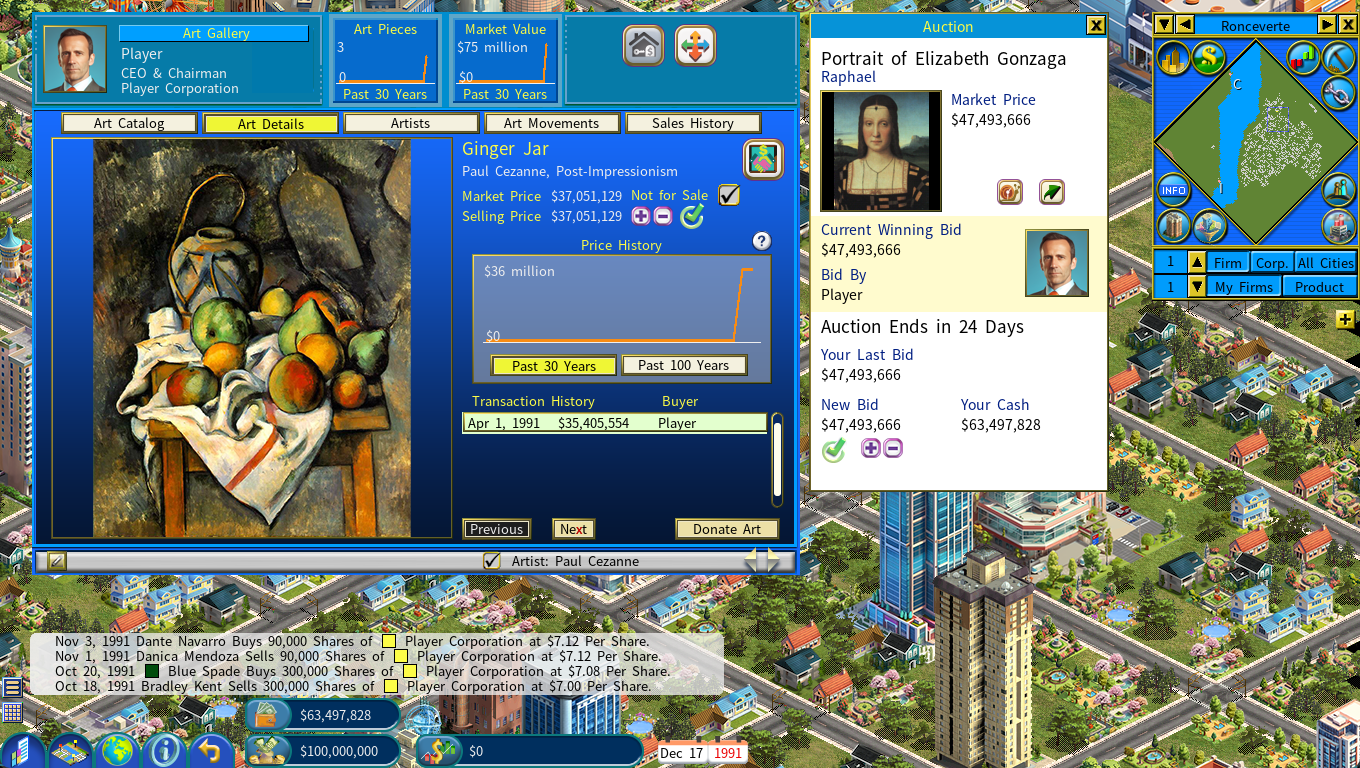
The auction window
While an auction is running, a movable Auction panel appears at the side of the screen:
| Shown here | Meaning |
|---|---|
| Artwork, artist & thumbnail | Which piece is up for auction. |
| Market Price | The artwork’s current worth. |
| Current Winning Bid / Bid By | The leading bid and who holds it, with their portrait. Before any bid it reads None and shows the Starting Bid instead. |
| Auction Ends in N Days | The countdown to close. |
| Your Last Bid | The amount you’ve committed so far (flags Below Starting Bid in red if it’s too low to count). |
| New Bid · + / − · Your Cash | Set your next bid with the +/− buttons; you can’t exceed your personal cash. |
| Confirm | Commit the bid you’ve set. |
Two small buttons sit in the panel: one slows the game speed while auctions are live so you don’t miss them, and one jumps to the Auction House.
Placing a bid
- The Starting Bid is the artwork’s Market Price — the first bid must meet it.
- Each later bid must beat the Current Winning Bid by a fixed increment. Use + / − to set your New Bid, then click Confirm.
- After you confirm you become the Current Winning Bidder — but rival collectors bid back, so watch the panel and raise again if you’re outbid.
How an auction ends
- Every new bid extends the deadline (by about a week), so a hotly contested piece can run well past its original countdown. The auction closes once bidding stays quiet for roughly a week.
- When it closes, the highest bidder wins and pays the winning bid from personal cash.
- Keep the cash ready. If the winner can’t cover the final price, the bid is disqualified, the sale is canceled, and the piece is relisted for a later auction — so don’t spend the money you’ve bid.
- The panel then shows the result for a while: the Winning Bid and Winning Bidder, or “No bids were placed — the item remains unsold.”
The Auction House screen
Clicking the Auction House building itself opens its firm screen. The top area carries the house’s Revenue and Profit graphs (over the past 36 months); below are two tabs:
Auction Result
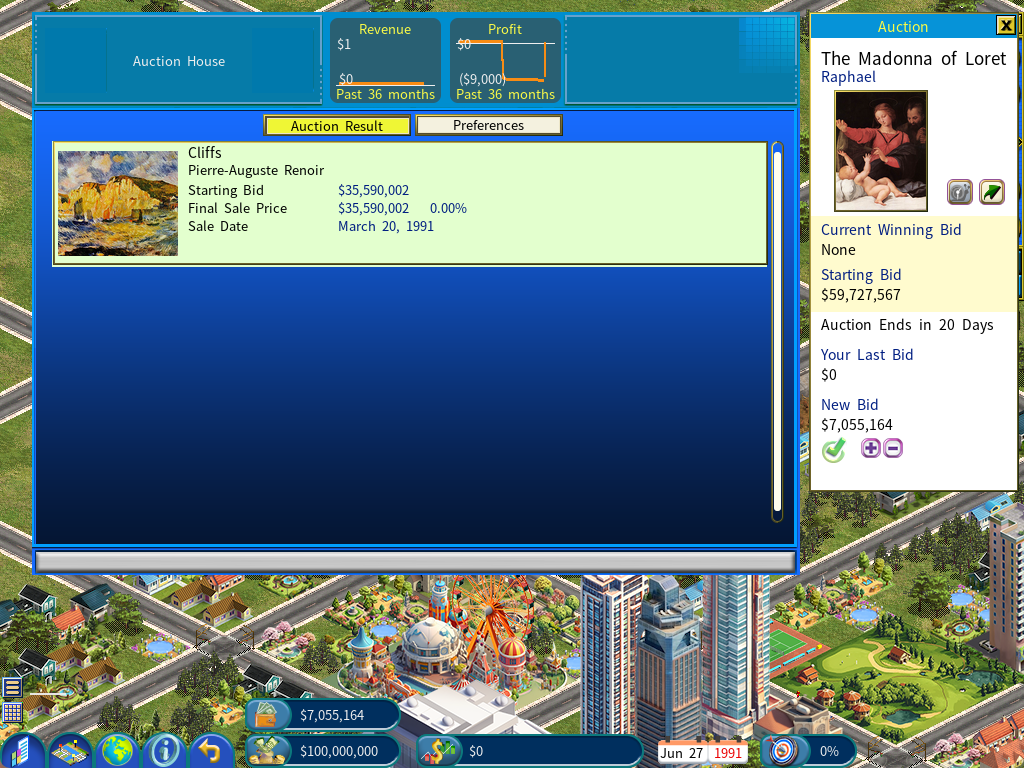
A history of completed auctions. Each entry shows the artwork’s thumbnail and artist, its Starting Bid, its Final Sale Price (and how far that ran over the starting bid, as a %), and the Sale Date. Double-click a row to jump to the gallery that now owns the piece.
Preferences
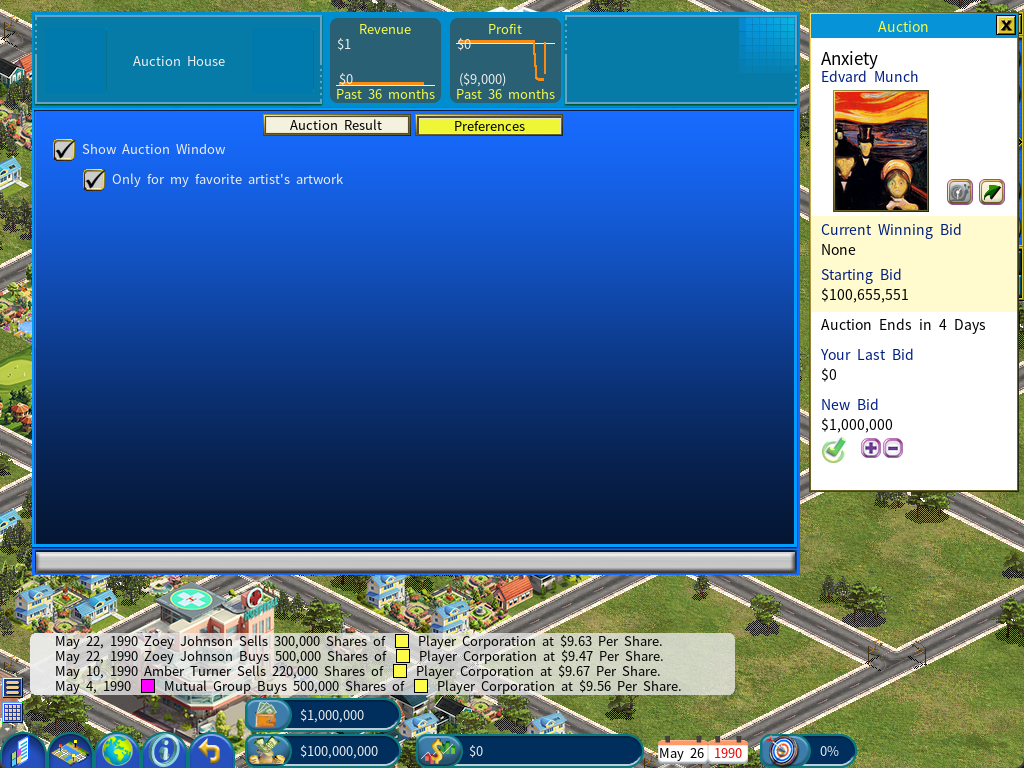
Show Auction Window turns the pop-up auction panel on or off; Only for my favorite artist’s artwork narrows those pop-ups to auctions featuring your favorite artist (chosen at new-game setup — see Starting a game with Fine Art). If you don’t yet own an Art Gallery, this tab also reminds you that the auction window only appears once you’ve built one.
You don’t have to be a passive buyer — you can own art buildings yourself.
- Art Gallery — your own collection that you can grow, reprice, and resell. Everything on the Art Gallery screen above becomes yours to manage.
- Art Museum — a prestige showcase for art you donate (see below). It doesn’t trade art; it exhibits it and draws visitors.
The museum’s screen and its all-important focus setting are covered in The Art Museum screen below.
Donating art (and why it’s worth it)
Once you own paintings, you can Donate Art from the Art Details page to one of your art museums.
- Donating gives the painting away — you don’t get its value back in cash. Instead, the painting’s worth is added to your Personal Philanthropy.
- The piece is then exhibited in the museum, where it counts toward that museum and draws visitors.
Personal Philanthropy is part of the Billionaire Life standing systems: it raises your influence/standing and contributes to your character’s lifestyle satisfaction. It’s a permanent running total — it only grows. So a billionaire who buys great art and gifts it to the public builds lasting prestige, on top of whatever the art was worth.
Tip: the more valuable the painting when you donate it, the more philanthropy you earn. Letting a piece appreciate first — then donating — gives you more standing than donating it cheaply.
Building your own Art Museum
Beyond owning galleries, you can build your own Art Museum — a prestige showcase rather than a business. It never buys or sells: you fill it by donating art to it (see Donating art above), and in return it exhibits the works and draws visitors from its town. Its screen carries an owner panel and two top graphs (Art Pieces and Market Value, over the Past 30 Years), plus three tabs: Overview, Art Collection, and Art Details.
Overview tab
The Overview is the heart of the museum, in three blocks.
Museum Focus — how the museum specializes. Only the owner can change it; there are three choices:
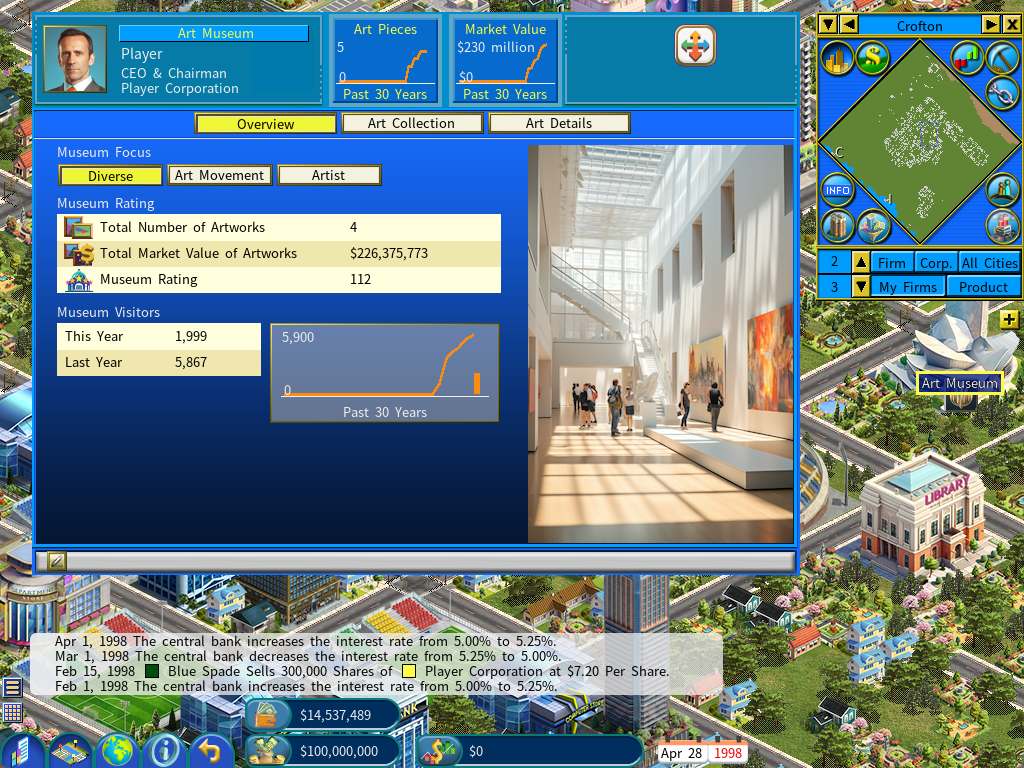
| Focus | The museum is judged on… |
|---|---|
| Diverse | its whole collection — the Total Number of Artworks and their Total Market Value. Best when you collect broadly. |
| Art Movement | how well it represents one chosen movement — its Focused Artworks (the pieces in that movement) and their value. |
| Artist | how well it represents one chosen artist — its Focused Artworks by that artist and their value. |
When you focus on a movement or artist, a list appears of the movements or artists in your collection, each with an Art Qty and Market Value; click one to set it as the focus.
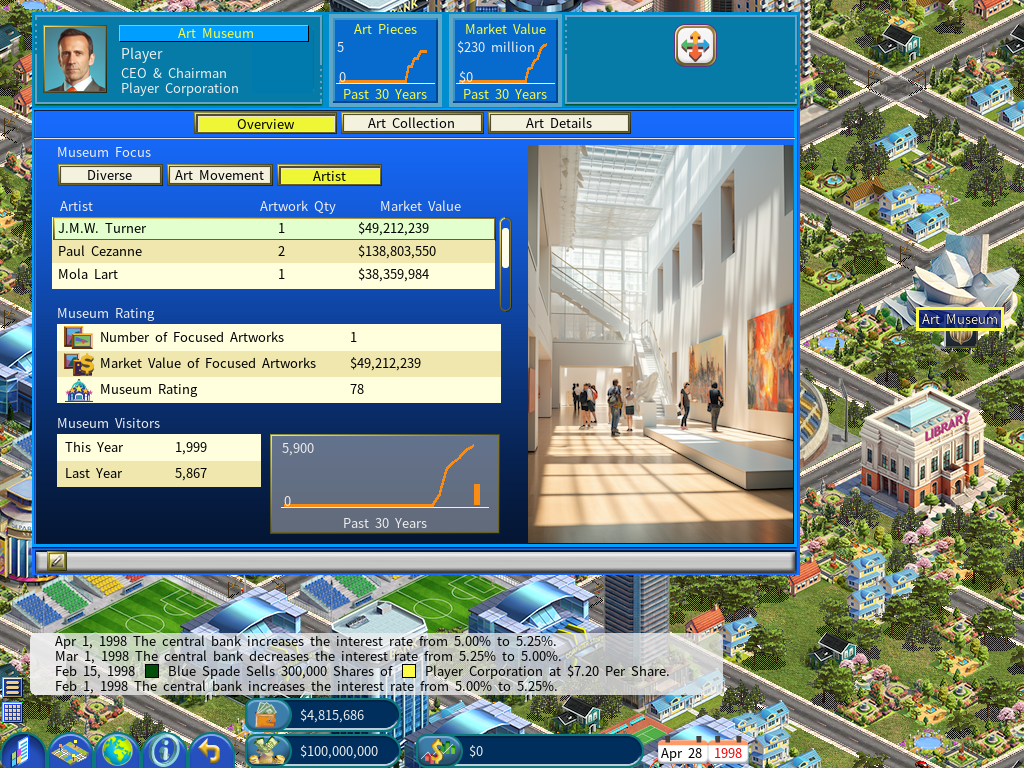
Museum Rating — the box beneath shows the figures behind the rating. For a Diverse museum it lists Total Number of Artworks, Total Market Value of Artworks, and the Museum Rating; for a focused museum it lists Number of Focused Artworks, Market Value of Focused Artworks, and the Museum Rating.
The same collection can score very differently depending on its focus. A small, scattered collection usually rates highest on Diverse, while a museum stacked with one artist’s or one movement’s work rates far higher when focused on that artist or movement. Concentrate your donations, then set the matching focus.
Museum Visitors — the This Year and Last Year visitor counts, plus a Past 30 Years graph. A museum draws visitors from its town.
Art Collection tab
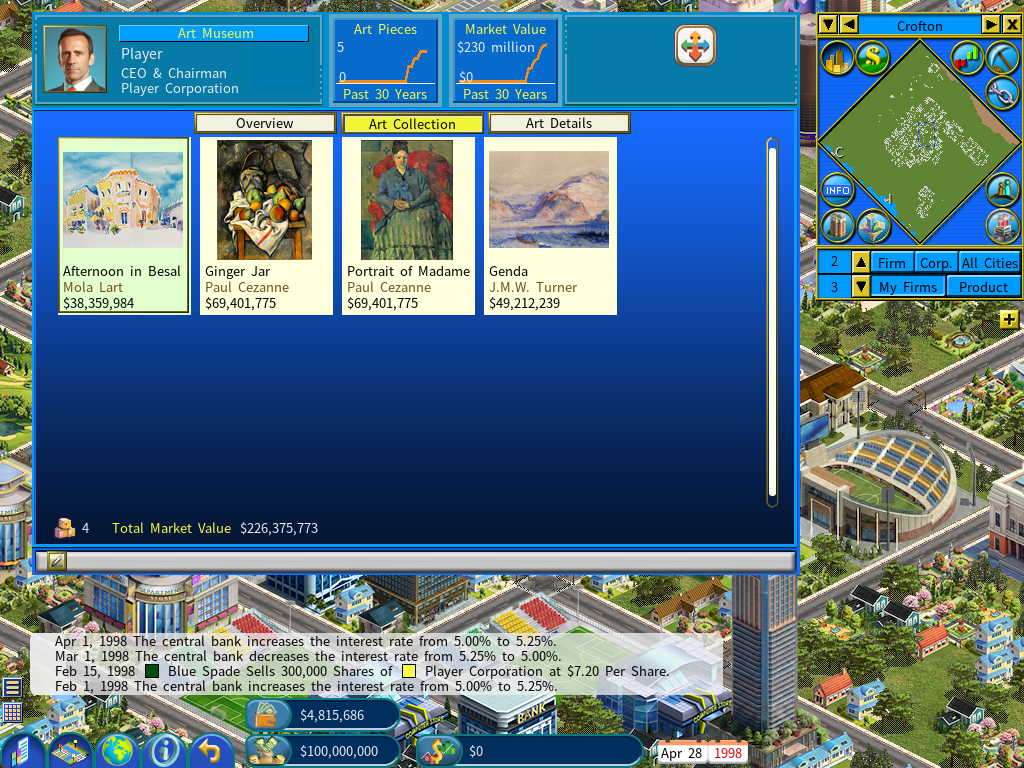
A thumbnail grid of every artwork the museum holds, each showing its title, artist, and market value, with the total count and Total Market Value along the bottom. Double-click a piece to open its details.
Art Details tab
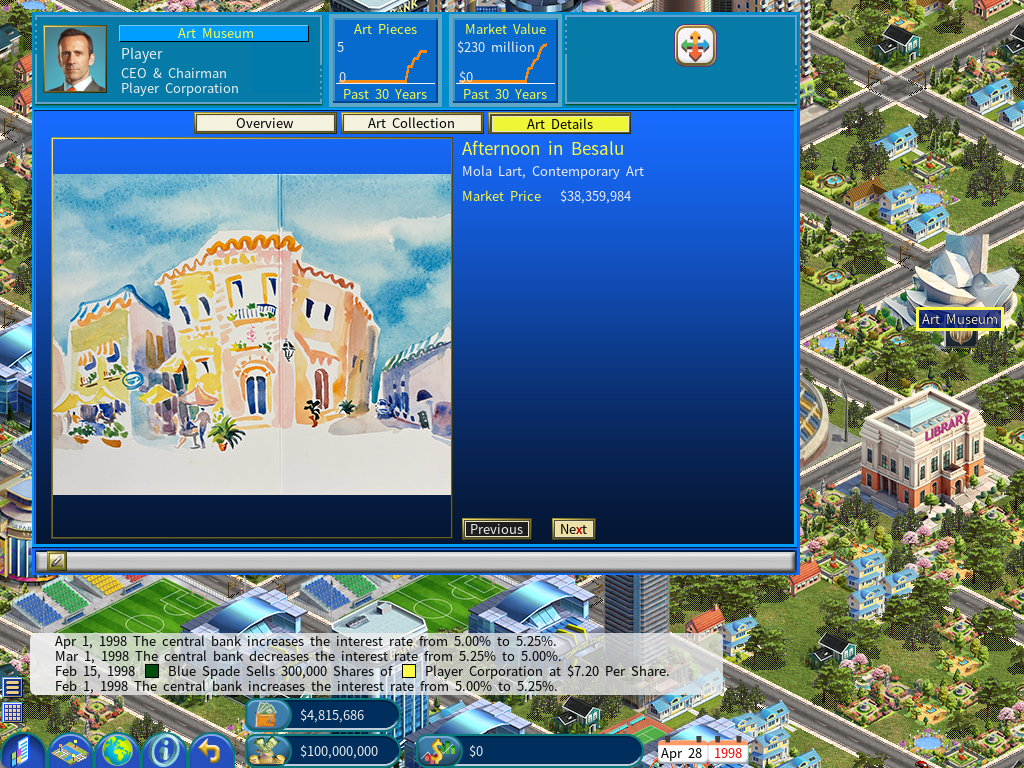
The single-artwork view: a large image, the title, its Artist and Movement, and the Market Price, with Previous / Next to page through the collection. There’s no pricing here — museum art is exhibited, not for sale.
Frequently asked questions
I bought a painting — can I sell it right away?
Art you buy is set to Not for Sale by default. To resell it, open its Art Details, set a Selling Price, and clear the Not-for-Sale box. Fine art usually rewards holding until it appreciates rather than a quick flip.
Does owning art make money on its own?
Not as income — there’s no “rent” from a painting. You profit only when it appreciates and you sell (see the Sales History tab), or you convert it into standing by donating it. Museums likewise are about prestige, not profit.
How do I tell whether a piece is a good buy?
Everything you need is on screen: check the Markup next to the Selling Price, the painting’s Price History graph, and the Price Trend of its artist and movement on the Artists / Art Movements tabs.
A specific masterpiece I want never comes up. Why?
Works appear on the market somewhat at random, and the most prized ones tend to surface at the Auction House. The piece you want may simply not have appeared yet — keep checking, and be ready to bid when it does.
Also check the Auction House’s Preferences: if Only for my favorite artist’s artwork is ticked, the auction pop-up appears only for your favorite artist’s works, so auctions of other artists go by unannounced. Untick it to be notified of every auction.
My museum’s rating is low even though I own nice pieces.
The rating depends on the museum’s Focus. A handful of unrelated works rates modestly on Diverse and poorly when focused. Pick one artist or art movement, donate heavily into it, and set that as the museum’s focus — a museum that represents most of one artist’s or movement’s work rates far higher.