
Subsidiary Company’s Management Policies
As the owner of a parent company you can shape how each subsidiary is run, tailoring its strategy to your wider corporate goals.
Opening the policies
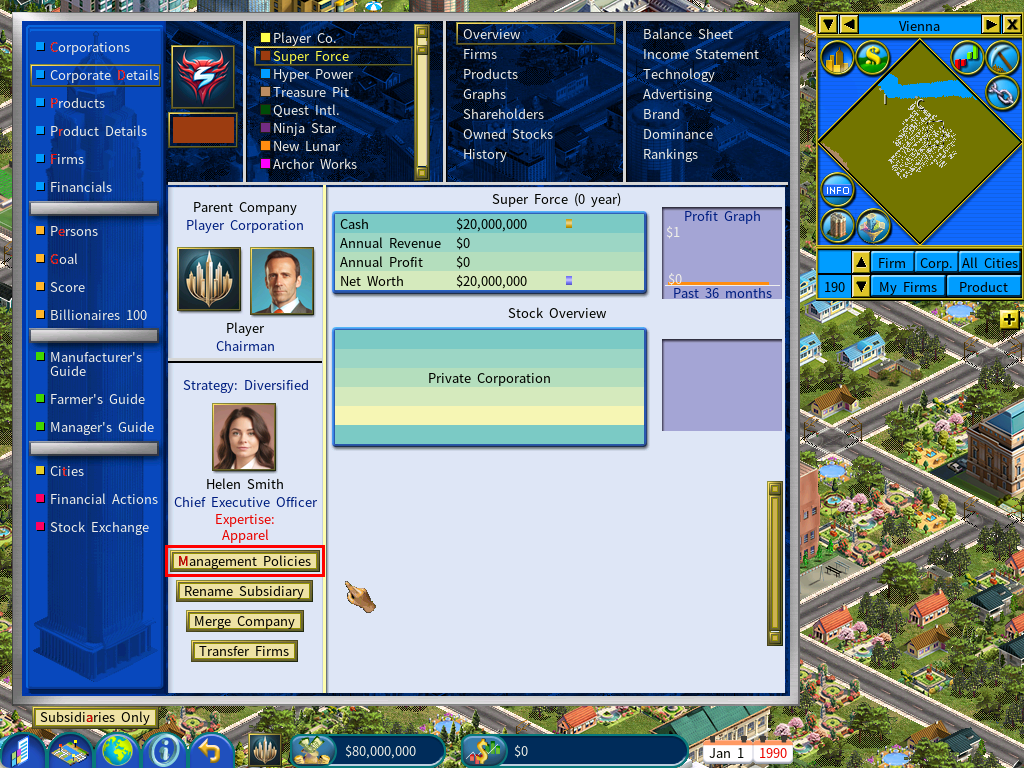
Click [Management Policies] on the Overview page of the subsidiary’s Corporate Details.
They are also reachable from Persons › Career in the Information Center.
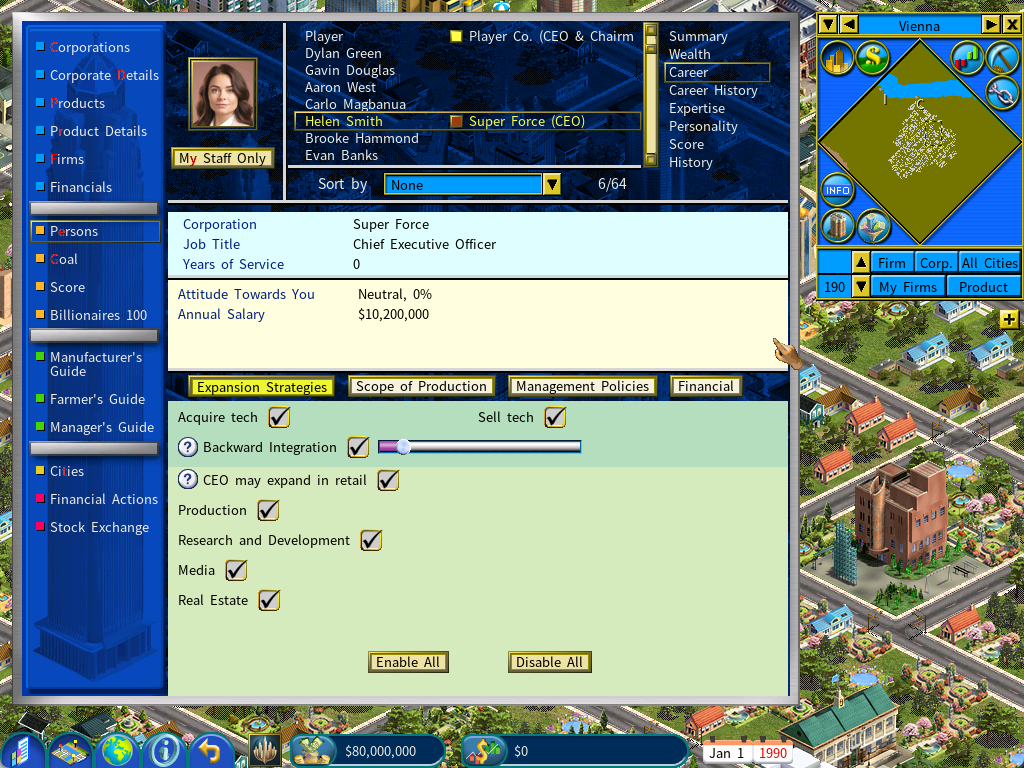
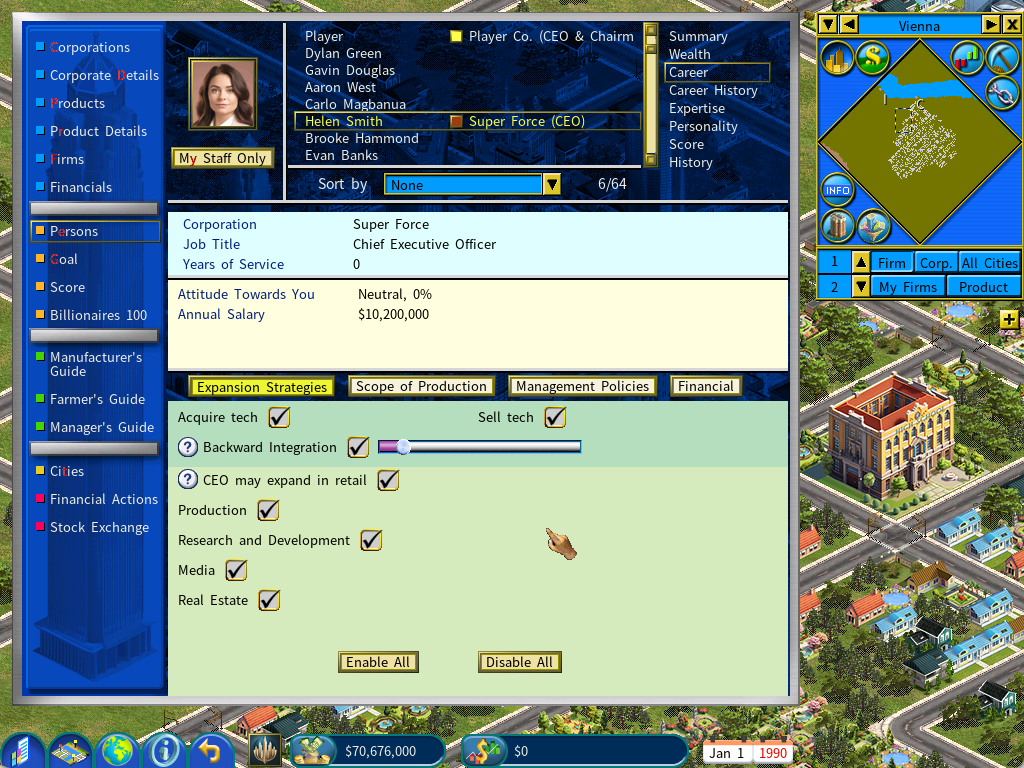
Either route opens the list of policy areas you can adjust.
Expansion Strategies
Sets the expansion strategy options for the subsidiary’s CEO.
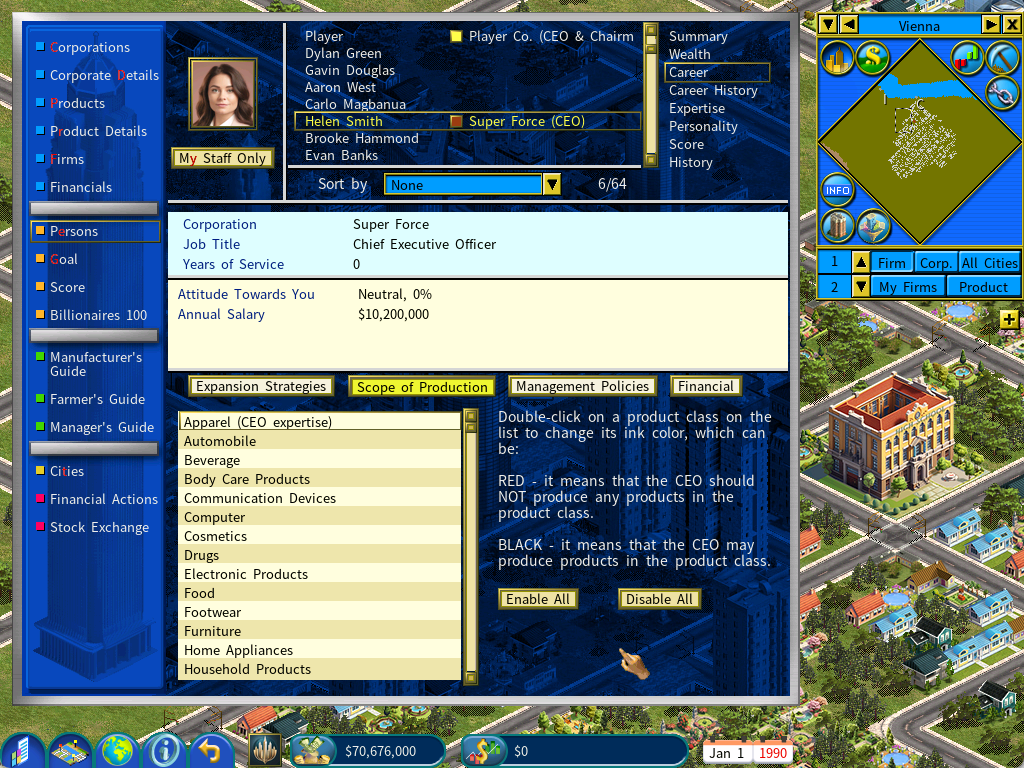
Scope of Production
Lists the product classes you do not want the subsidiary to produce — useful when you would rather it did not compete with you in the same markets.
This only stops a subsidiary from starting production in an affected product class. Where it is already producing in that class, the policy has no effect.
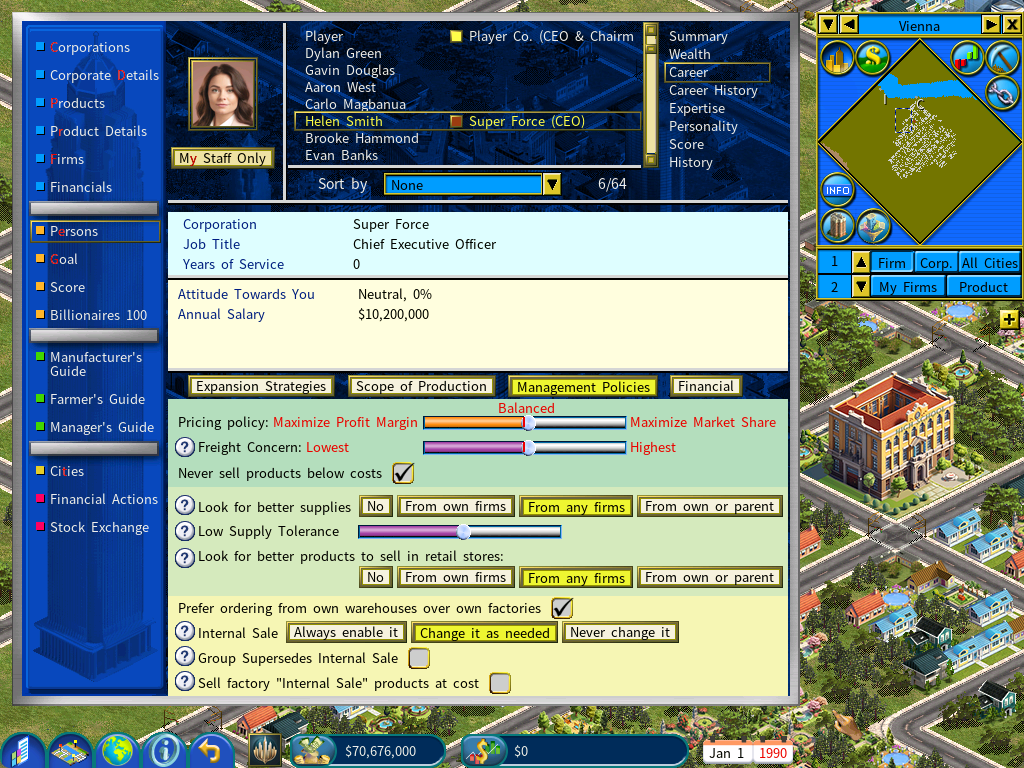
Management Policies
This page carries the same options as the COO’s management policies.
Changing anything here applies to both the CEO and the COO, so policy stays consistent across the company.
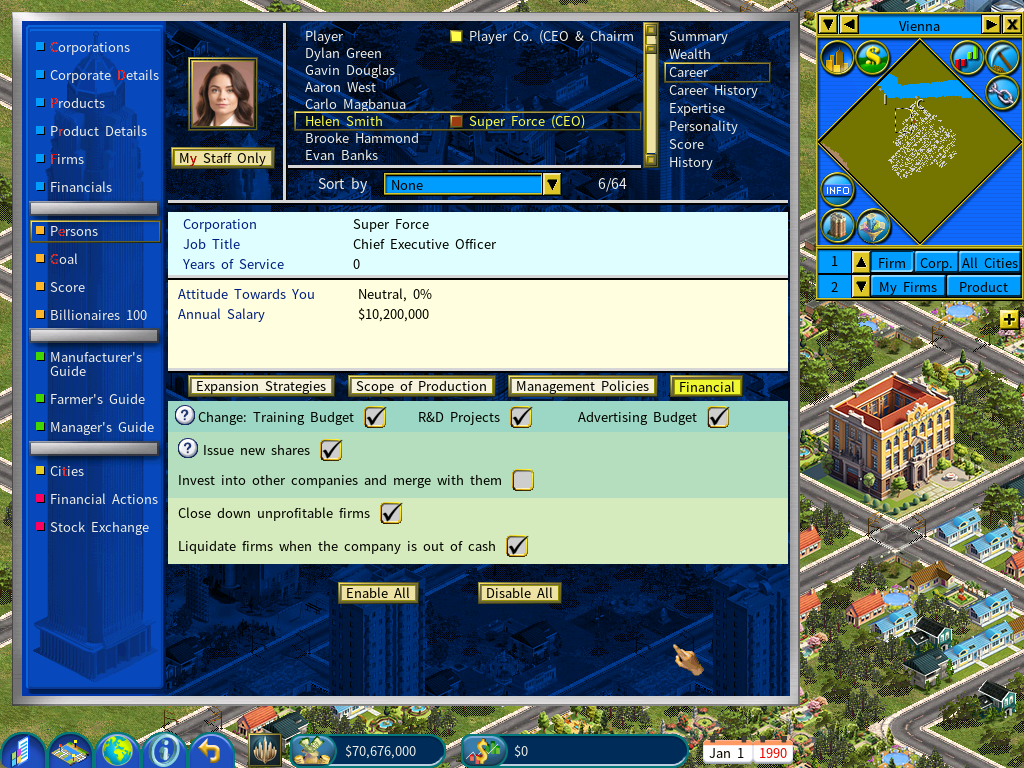
Financial Policies
Sets the policies with financial consequences.
Product pricing policy
Pricing can be set two ways: once for everything, or product by product.
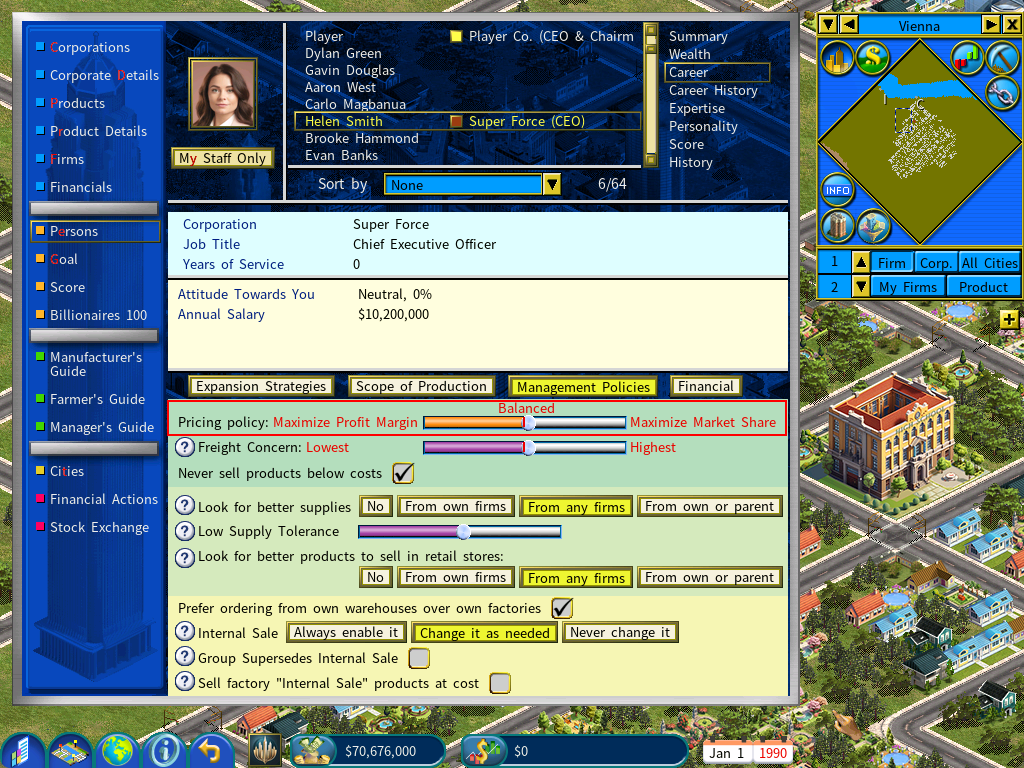
General product pricing policy
Set in the Management Policies area, applying to every product the company sells.
Pricing policies for individual products
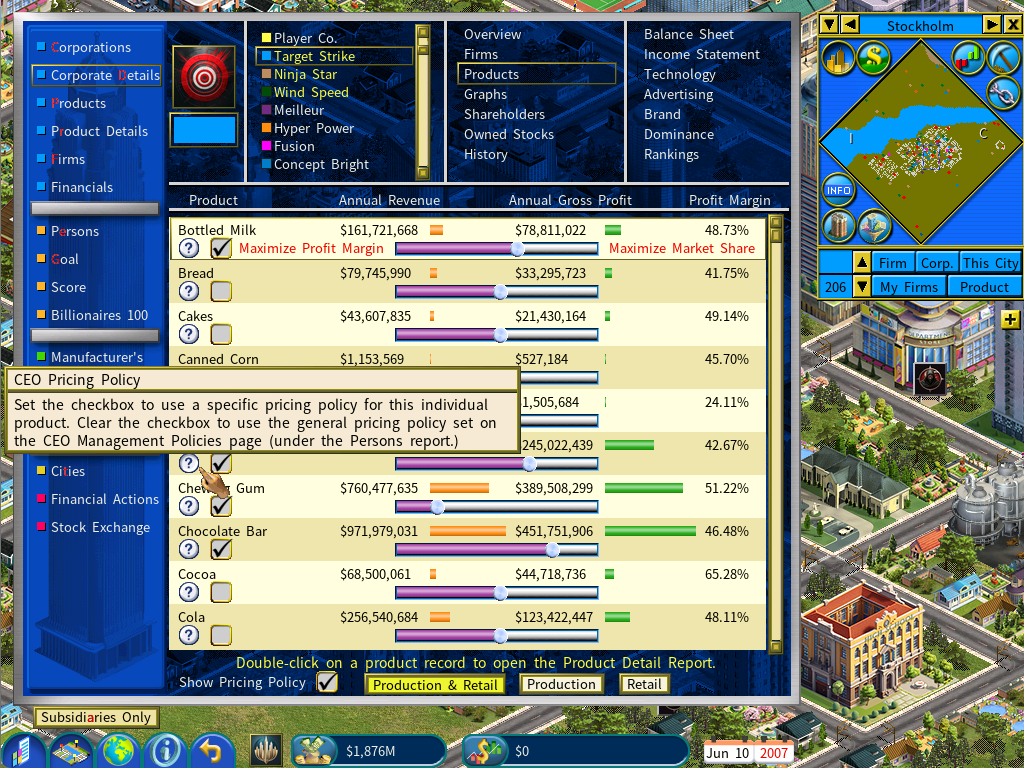
Use the sliders on the Corporate Details › Products screen.
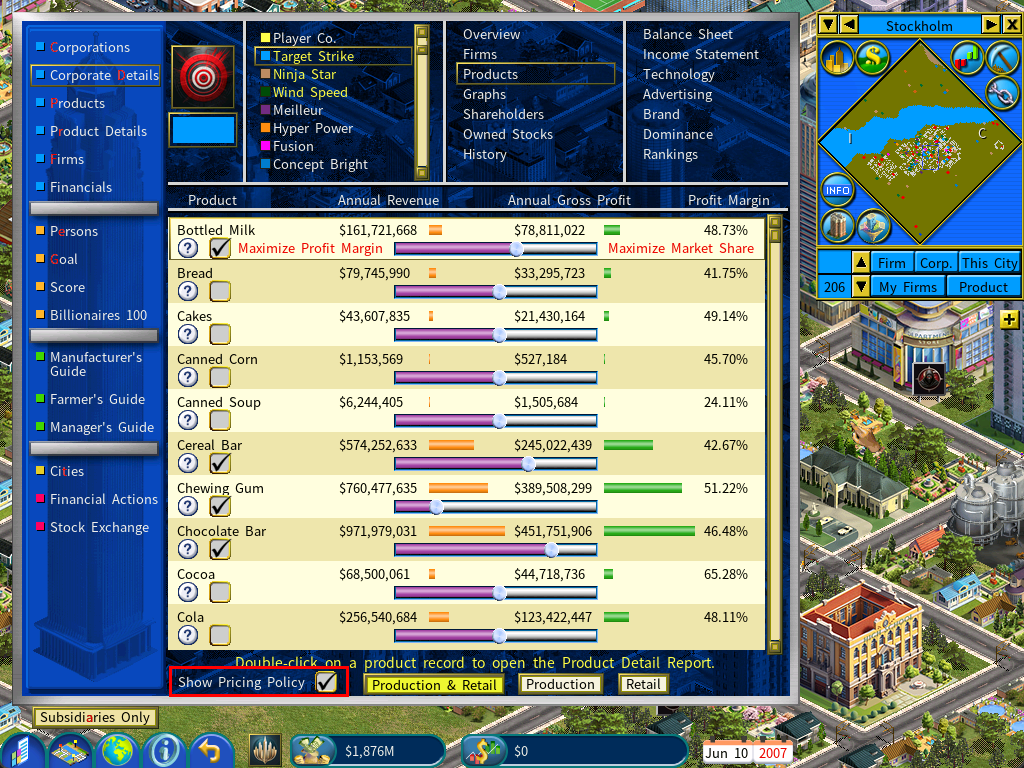
Tick Show Pricing Policy at the bottom of the screen to switch the feature on. Each product then gains a slider and a checkbox.
The checkbox decides whether that product follows its own custom pricing policy or the general policy set on the CEO or COO screen. To give a product its own policy, tick its box and move its slider.