

Product Customization
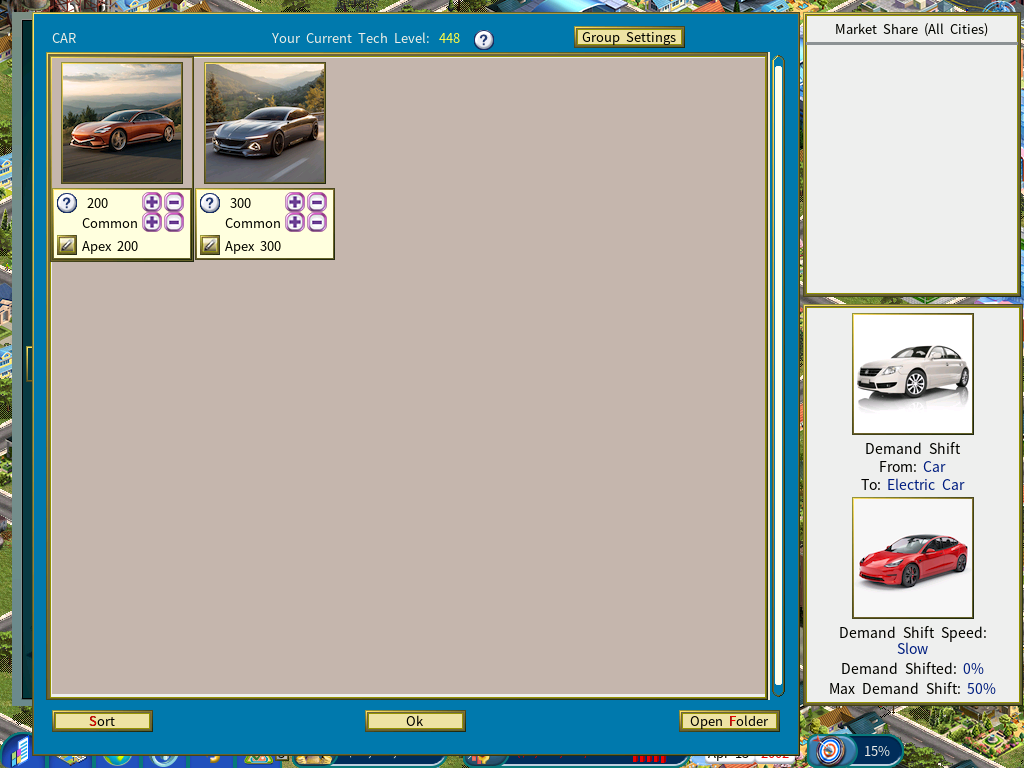
Product Customization lets you assign custom images to your products and tie each image to a technology level. Once a product’s tech level reaches the threshold you set, the game switches to that image automatically.
Set a custom Car image at tech level 200, for example, and it replaces the default Car graphic as soon as your Car technology passes 200.
Available when either the Subsidiary DLC or the Digital Age DLC is enabled.
Enabling Product Customization
Open the New Game Settings menu and switch Product Customization on.
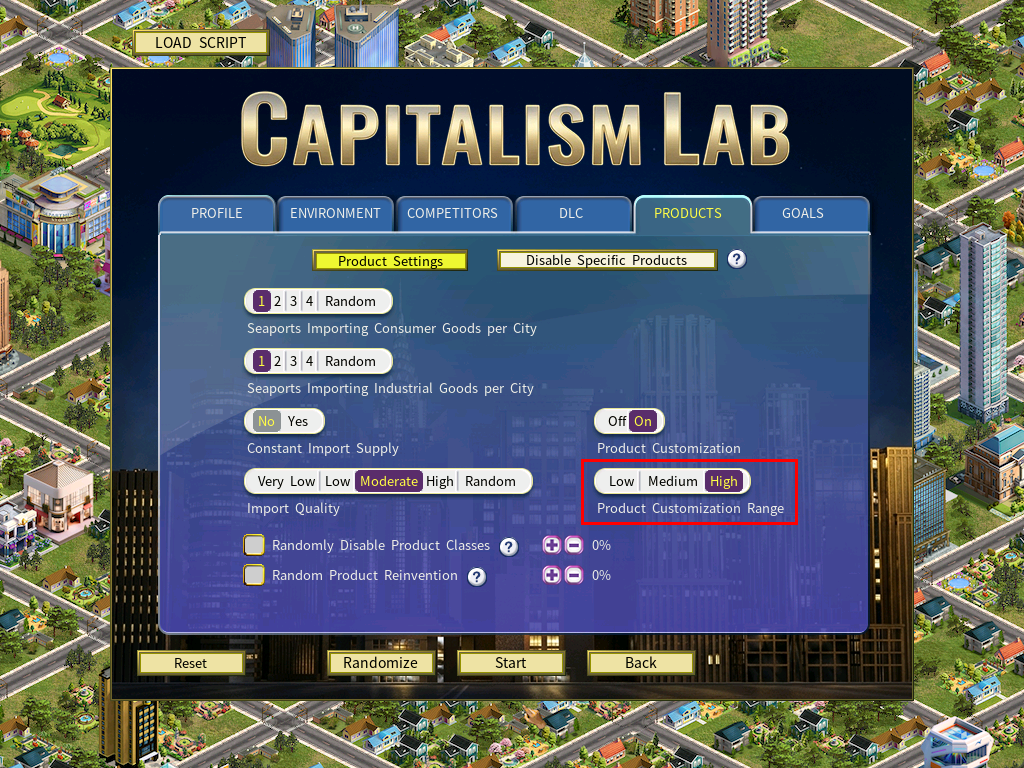
Turning this on automatically disables Technology Disruption, by design. Product Customization needs tech levels that rise linearly, while Technology Disruption applies a 10% annual reduction to every tech level — which would break the progression the images depend on.
To customize a product, open the Manufacturer’s Guide, select the product, and click the Product Customization icon.
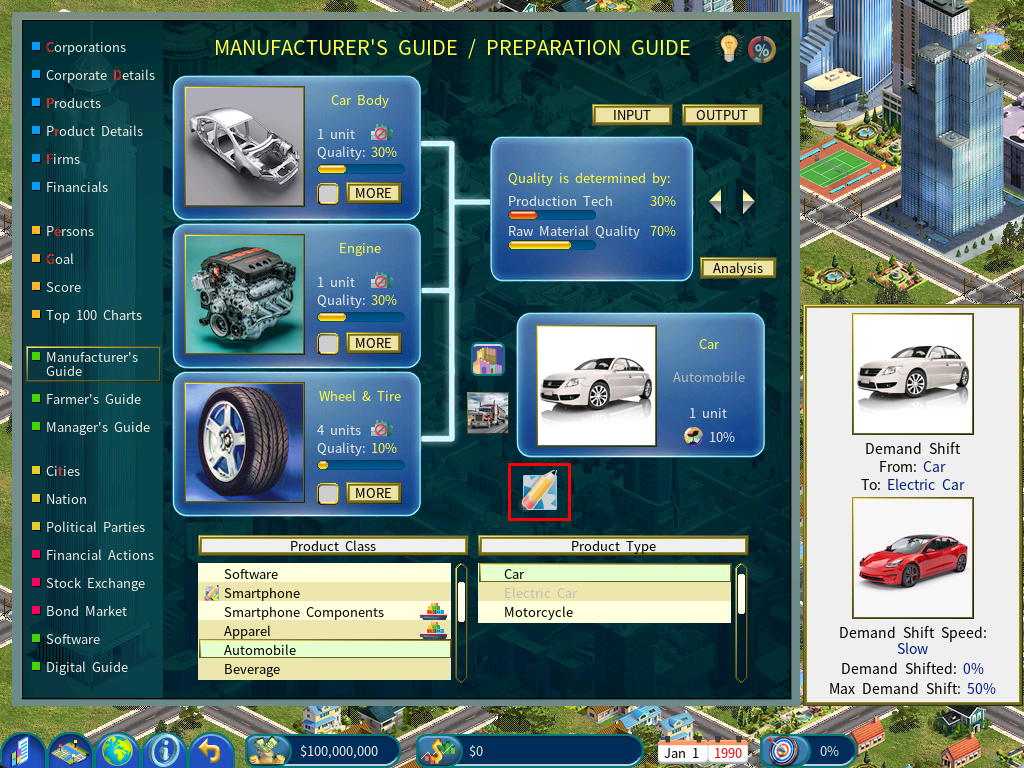
That opens the Product Customization window.
Adding custom images
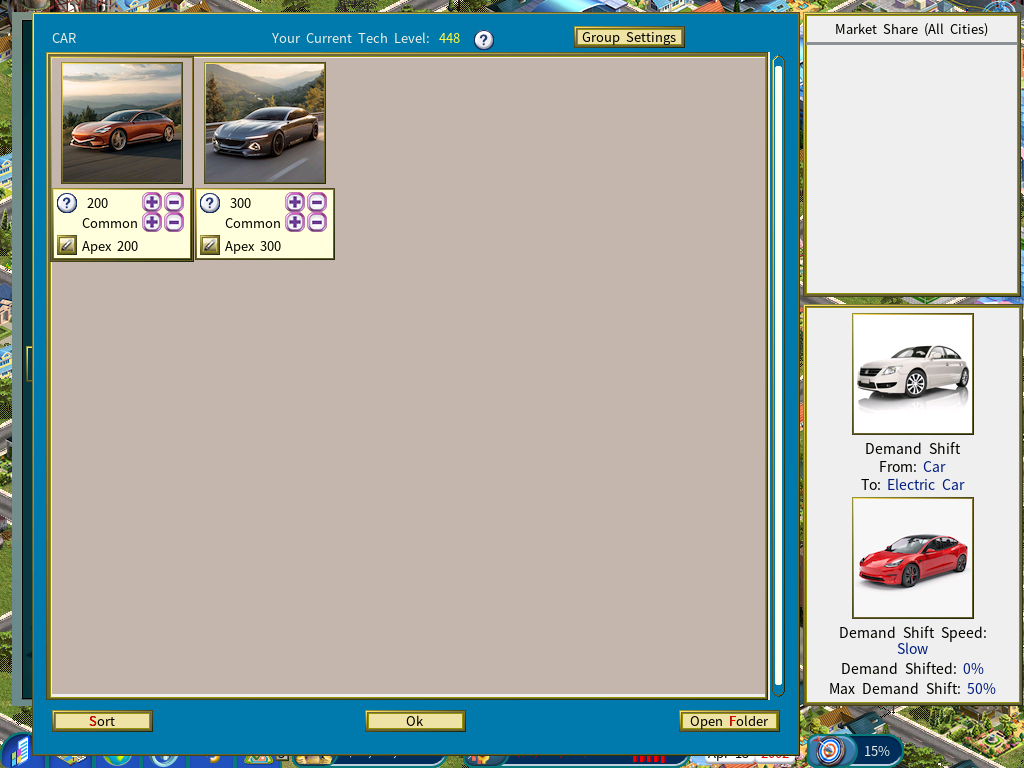
Click Open Folder at the bottom right of the window. It opens the directory where that product type’s custom images belong.
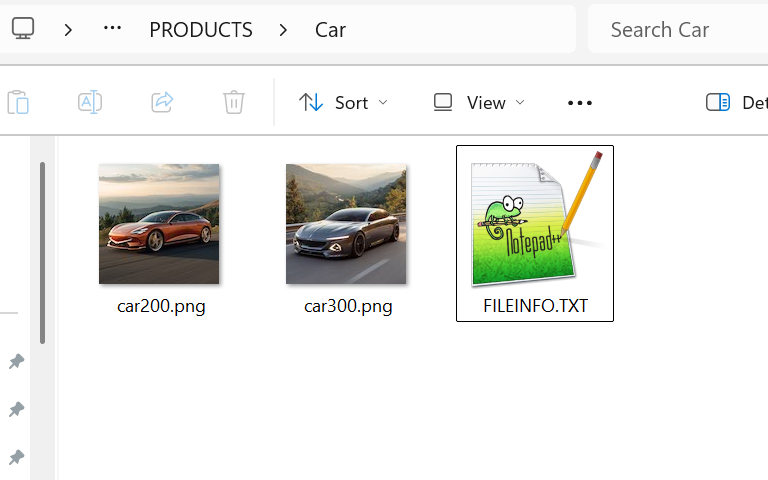
Viewing Car, for instance, opens:
C:\Users\<user name>\Documents\My Games\<your Capitalism Lab folder>\PRODUCTS\CarCopy a PNG into that folder. The image appears in the Product Customization window the next time you launch Capitalism Lab.
| Requirement | Value |
|---|---|
| Format | PNG only |
| Image size | 120 × 120 |
For converting and resizing, we recommend XnView’s free image tool: www.xnview.com/en/xnshell.
Assigning a tech level to each image
Give a custom Car image a tech level of 200, and once your Car technology reaches 200 every newly manufactured Car using the latest tech shows that image.
In the Product Customization window:
- Use the [+] and [–] buttons under each image to set its required tech level.
- Click [Sort] to refresh the list into ascending order of tech level.
- Optionally give an image a custom name via the pen icon at its bottom left. The name then appears in the firm detail screen and the Product Details report.
Manufacturing with custom images
Research the product type
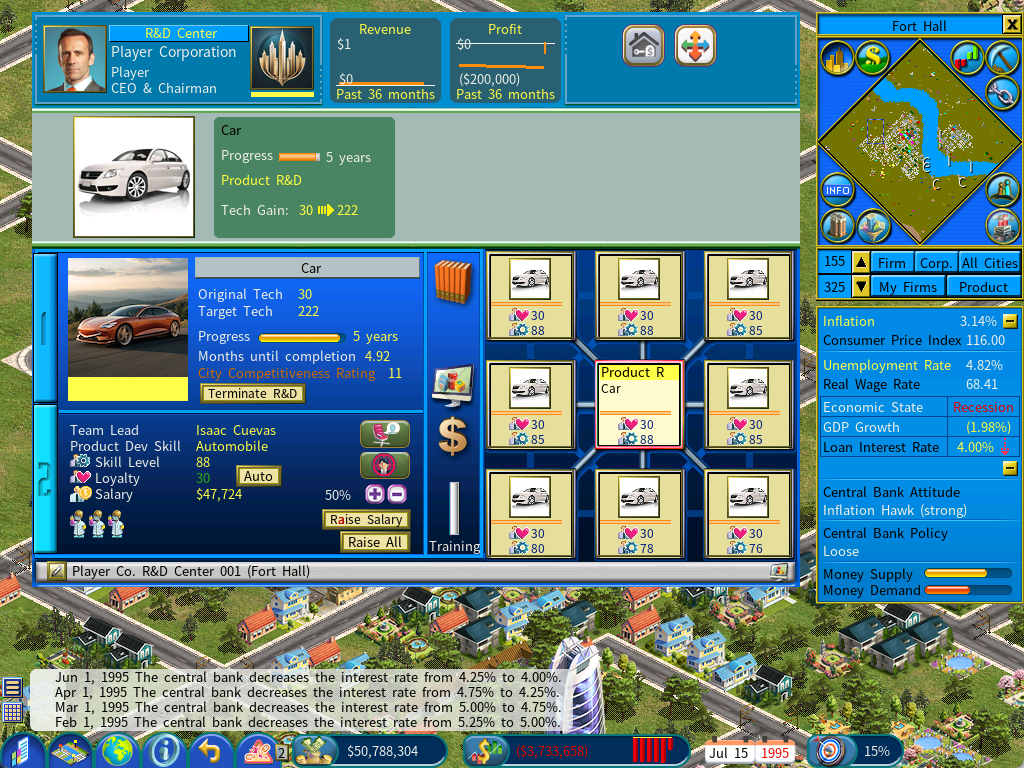
Set up an R&D Center and start a research project on a product type that has custom images.
Manufacture with the new technology
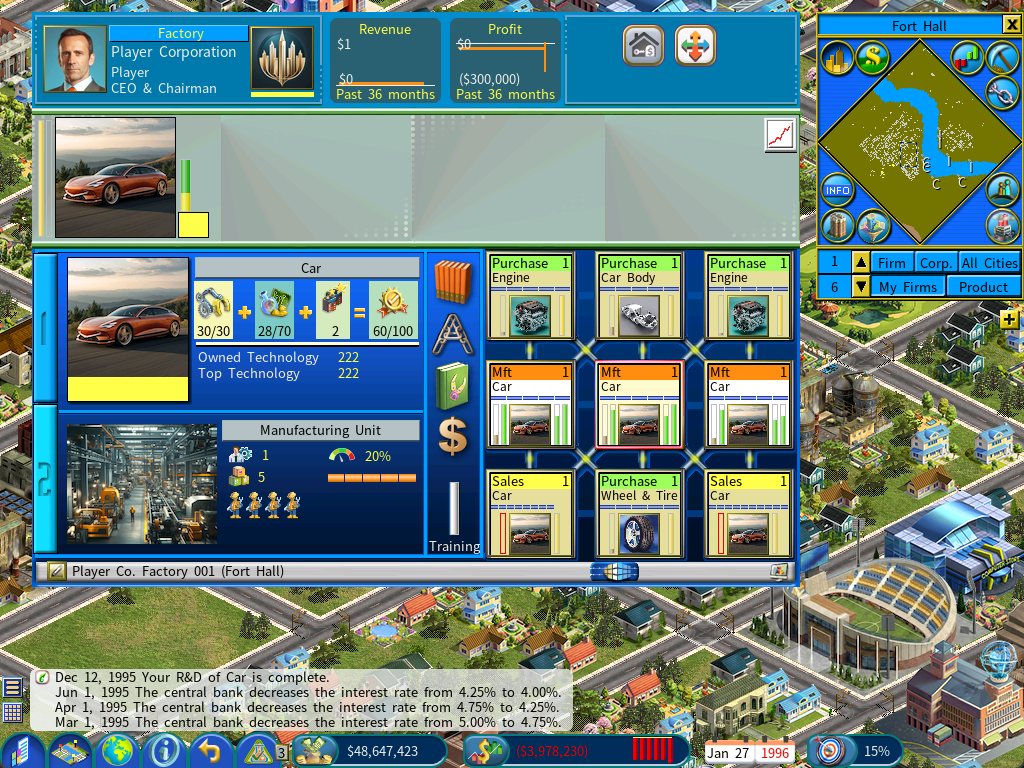
Build a factory and produce using the latest technology from that research.
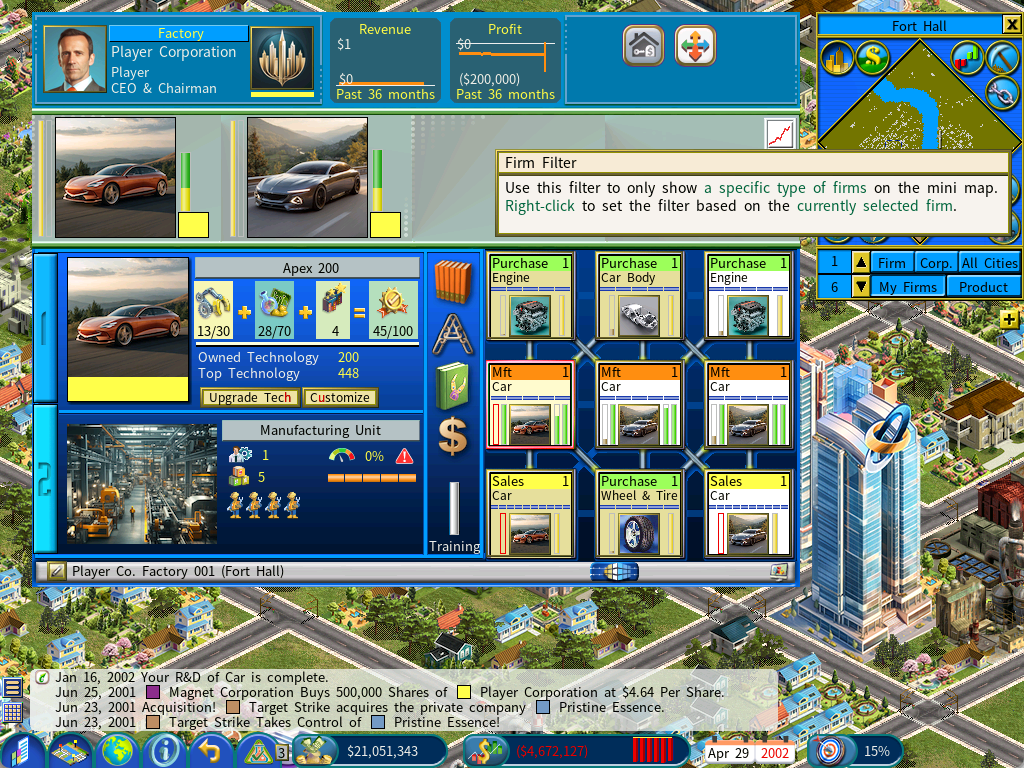
Below, the factory is producing Cars with a custom image, because R&D has pushed the technology past the level defined for it — 200 in this example.
Pinning a unit to a specific tech level
A sales outlet can offer a new high-tech product alongside an older lower-tech one at the same time.
By default a manufacturing unit upgraded to the latest technology switches to the matching custom image. The Customize button overrides that, so a particular factory keeps producing a lower-tech version with its own image.
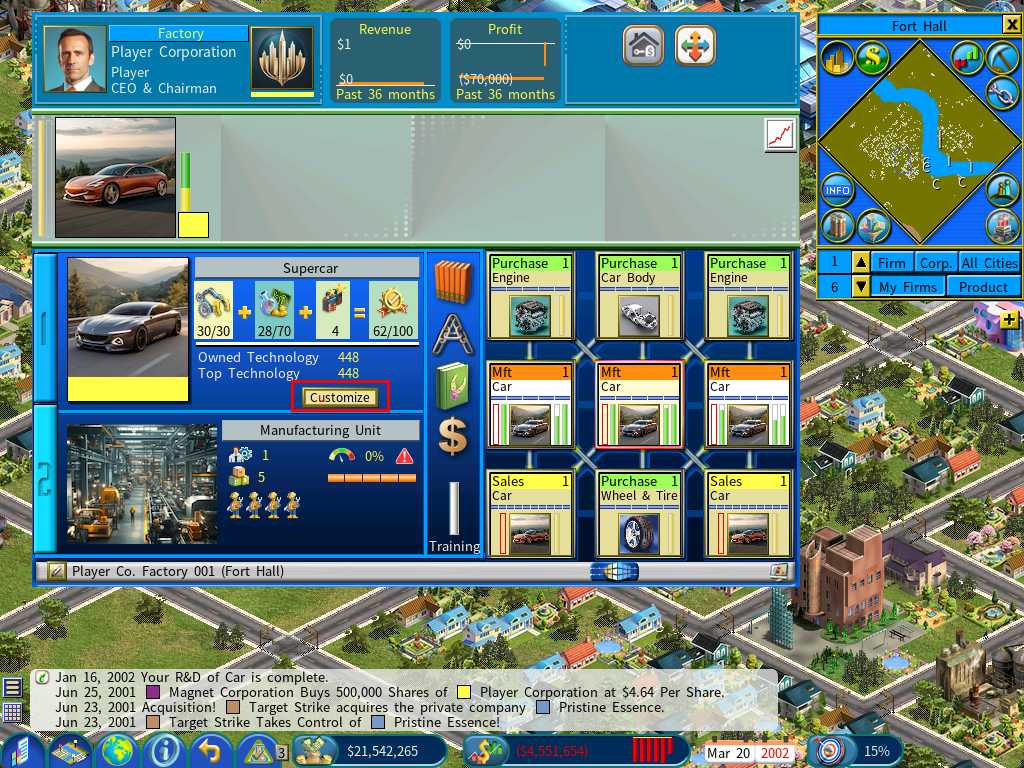
The window that opens lets you revert the unit’s production technology to a lower level and tie it to a different image. Each image shows its tech level beneath it.
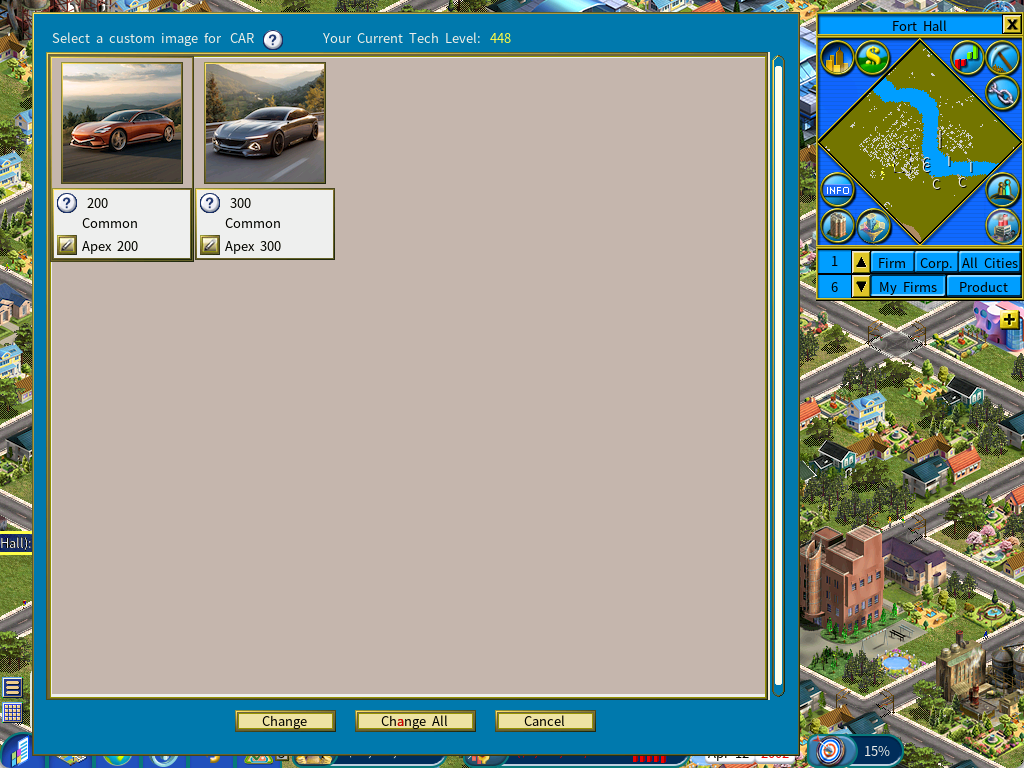
- [Change] — sets the production technology of the current manufacturing unit to the selected level.
- [Change All] — sets it for every manufacturing unit in the firm.
What it changes in play
Customization puts multiple variants of one product type on the market, and each variant is treated as a separate product with its own supply and demand.
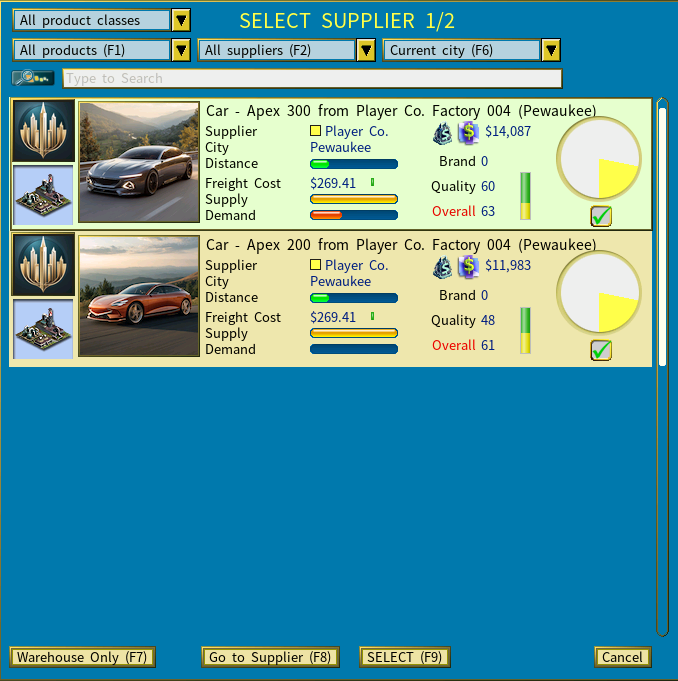
So you can sell two car models at once, aimed at different segments:
- Lower technology, lower quality, lower price — appeals to price-conscious consumers.
- Higher technology, higher quality, higher price — attracts quality-conscious consumers willing to pay for it.
Managed well, that broadens your market coverage rather than splitting it.
Auto Apply R&D Results is suspended
With Auto Apply R&D Results switched on, every manufacturing unit upgrades its tech level as soon as new results arrive — which would undo a unit you had deliberately pinned lower.
So using Customize on a unit suspends Auto Apply for that unit. Clicking [Upgrade Tech] on it again cancels the suspension.
A change to the game rule
While Product Customization is enabled, a manufacturing unit does not lose unit experience when its production technology is upgraded — so you can use the feature without watching experience levels fall away.
Modding
Custom product images can be embedded in a MOD for distribution to other players.
Adding Custom Product Images to Your Mod