

Display Modes
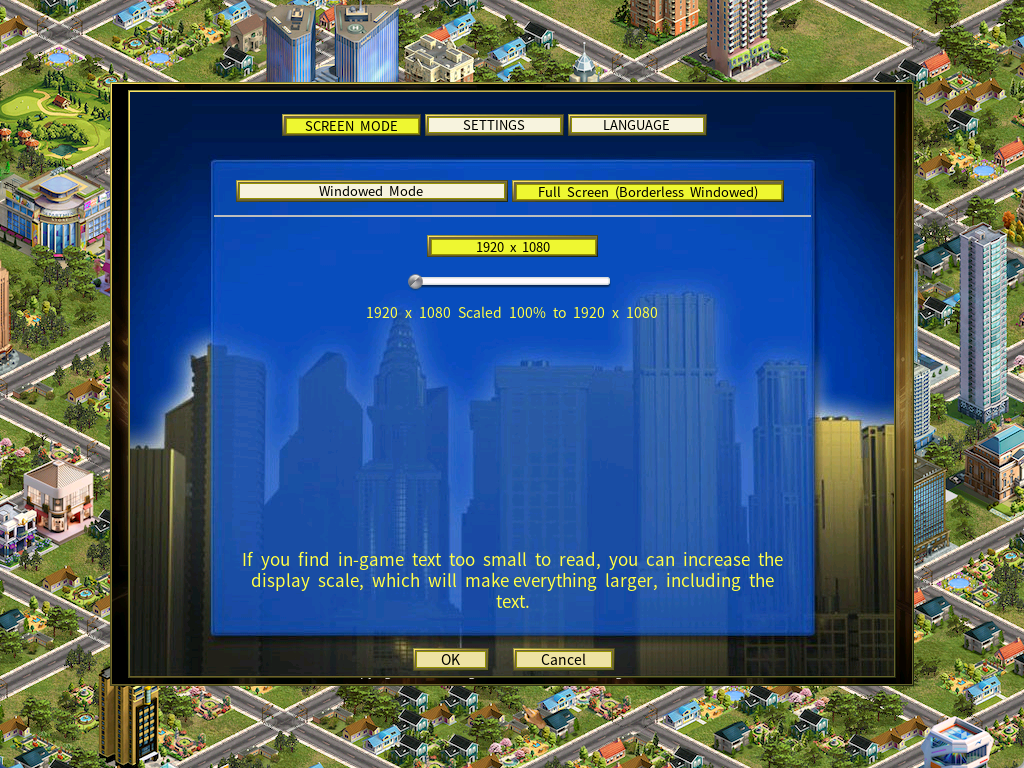
Capitalism Lab runs in two display modes, Full Screen (Borderless Windowed) and Windowed Mode. You can switch between them, and change the resolution, from the Screen Mode tab of the Options menu.
Resolutions from 1024 × 768 up to 3840 × 2160 (4K) and beyond are supported. If the text comes out too small on a high-resolution screen, see How to increase the text size.
On this page
- The two display modes
- How to change the display mode or resolution
- Resolution support
- Resizable windowed mode
- How to increase the text size
- Using two monitors
- About borderless windowed mode
The two display modes
Both modes are set from the same place. What separates them is how the resolution is chosen, and what you do when the text is too small.
| Full Screen (Borderless Windowed) | Windowed Mode | |
|---|---|---|
| Resolution | Matches your Windows desktop, so normally only one is offered. | Pick any of the supported resolutions. |
| Window size | Fills the screen. | Adjust the width and height freely. |
| Making the text larger | Move the Custom Scale-Up Slider. | Select a lower window resolution, then raise the scaling percentage. |
| Best suited to | One screen, with the game filling it. | Two monitors, or keeping other applications within reach. |
How to change the display mode or resolution
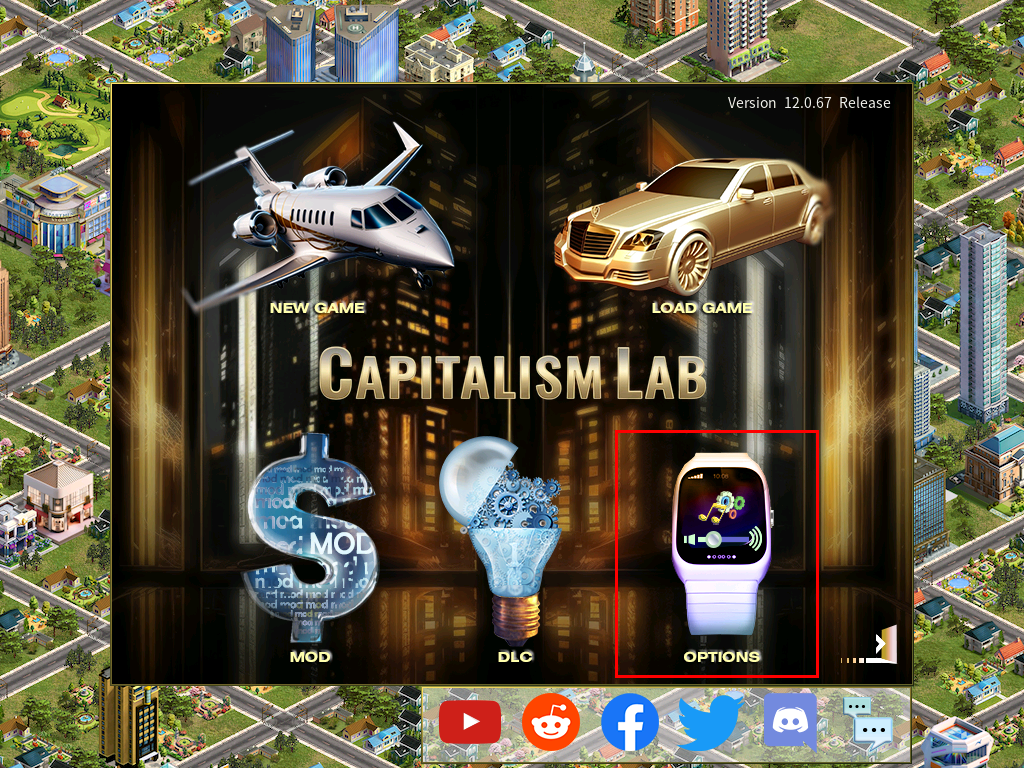
- From the main menu, click Options.
- Select the Screen Mode tab at the top of the Options menu.
- Choose your preferred display mode and resolution.
Resolution support
Capitalism Lab supports resolutions from 1024 × 768 up to 3840 × 2160 (4K) and beyond.
If your desktop resolution is not in the list, the game automatically uses a matching custom resolution, so you do not need to pick the nearest one by hand.
Resizable windowed mode
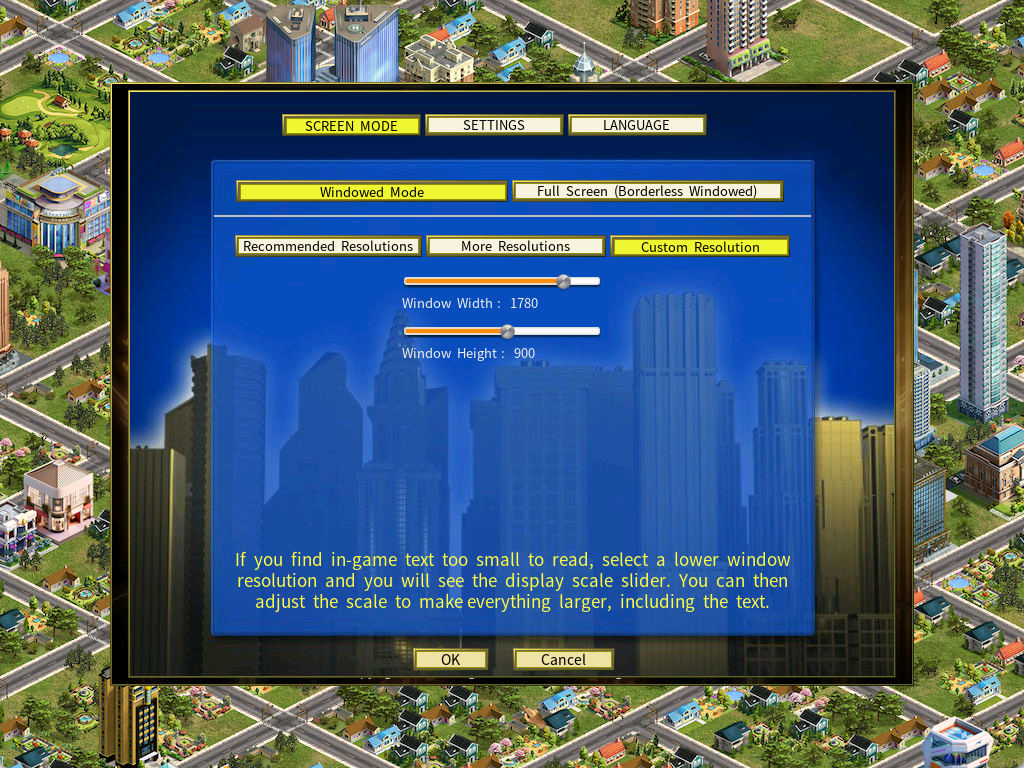
In Windowed Mode you can freely adjust the width and height of the game window to fit your screen and the way you work.
How to increase the text size
If the text is too small to read comfortably — which is common on a 4K monitor — use the built-in display scaling to enlarge the entire game interface. The steps differ slightly between the two modes.
Display scaling in full screen mode
- Open Options from the main menu.
- Select Screen Mode.
- Choose Full Screen (Borderless Windowed).
- Adjust the Custom Scale-Up Slider to make everything larger.
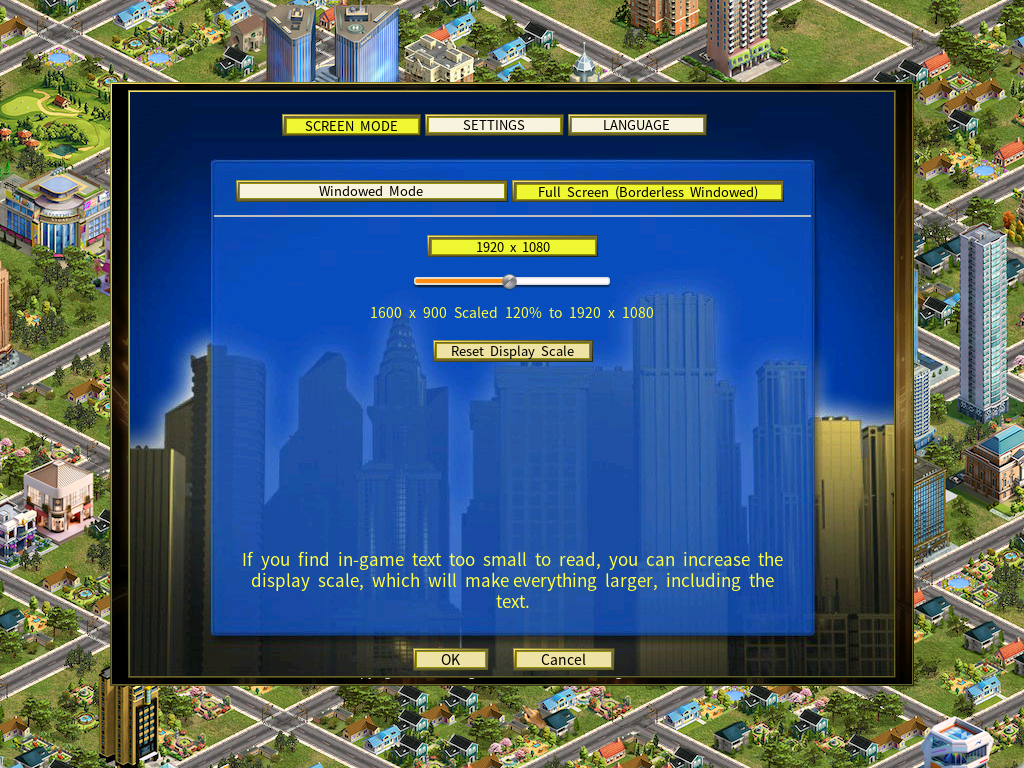
What the setting means. If you see 1600 × 900 Scaled 120% to 1920 × 1080, the game renders at 1600 × 900 and then scales the picture up to fill a 1920 × 1080 display. Text and interface elements come out larger and easier to read.
Display scaling in windowed mode
- Select a lower window resolution.
- The display scale slider becomes available.
- Increase the scaling percentage to enlarge the interface.
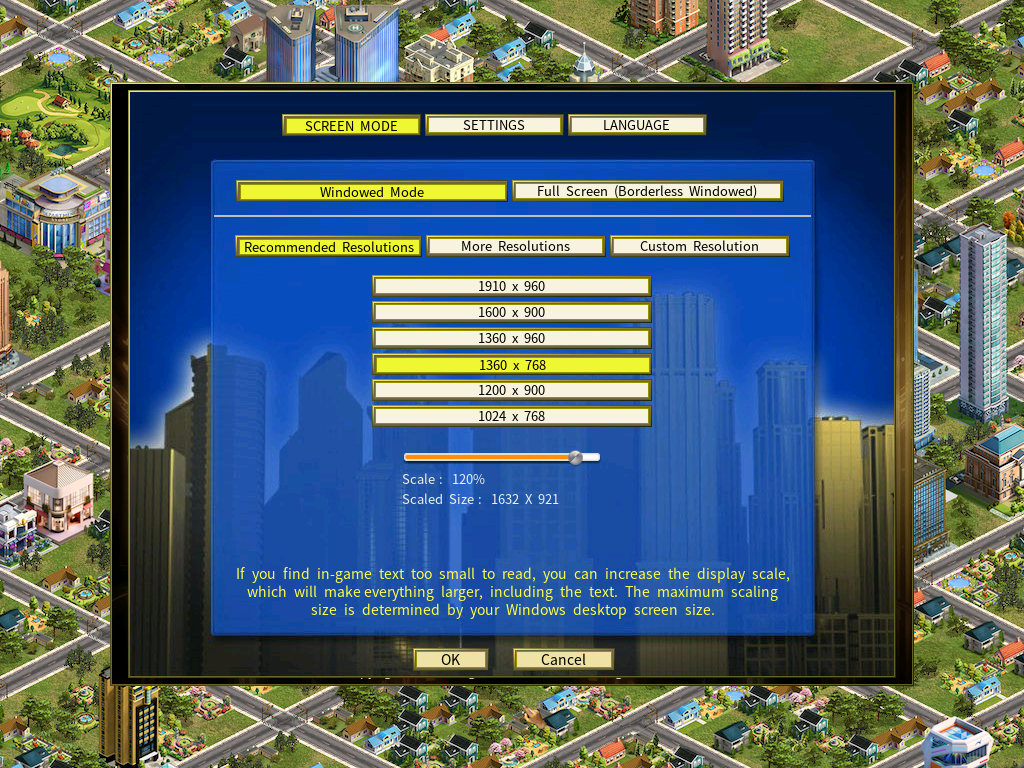
What the setting means. A window resolution of 1360 × 768 scaled to 120% creates a larger display area, making menus and text easier to read.
Using two monitors
With two monitors, Windowed Mode is usually the better choice. You can resize the game window and raise the display scale to make the text larger, while keeping the applications on your second screen within reach.
About borderless windowed mode
In Borderless Windowed Mode, Capitalism Lab uses the same resolution as your Windows desktop, so normally only one resolution is offered. To use a different one, change your desktop resolution in Windows first, then reopen the Screen Mode tab.