
How to Install and Run Capitalism Lab on Mac Using Porting Kit
Porting Kit allows you to run Capitalism Lab on your Mac without the need for a virtual machine, simplifying the process and making it easy to switch between Capitalism Lab and other applications.

Installation
Install Porting Kit
Download Porting Kit from https://www.portingkit.com/ and install it on your Mac. When asked if you want to install the optional component for GOG.com, skip it.
Download Capitalism Lab
Download the game package for Mac from the links below:
Download Capitalism Lab version 11 for Mac
Download Capitalism Lab version 12 for Mac
For students of De La Salle University, please download from below for compatibility with your assignment challenge:
Register a Capitalism Lab account
Click here to register a new Capitalism Lab account.
Run CapStart.exe
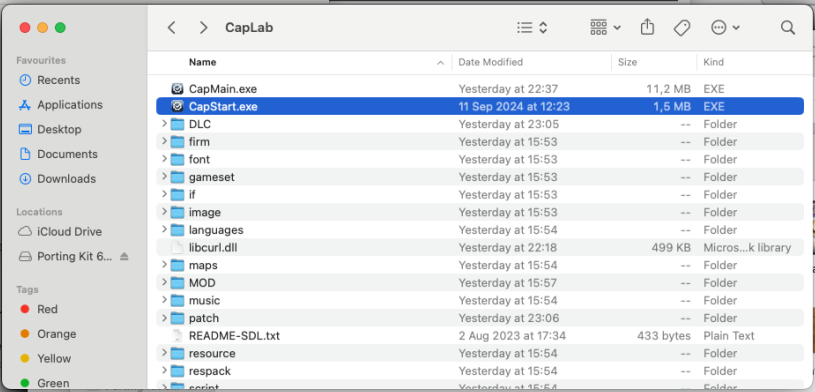
Find the downloaded “Capitalism Lab” folder (likely in your “Downloads” folder) and run “CapStart.exe.”
Create a new port
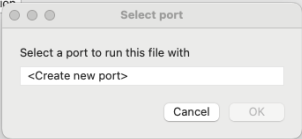
The following window will appear. Select “Create new port” and click “OK.”
Name the port
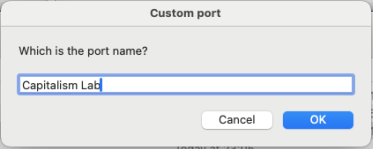
When asked for the port name, enter “Capitalism Lab.”
Select the engine
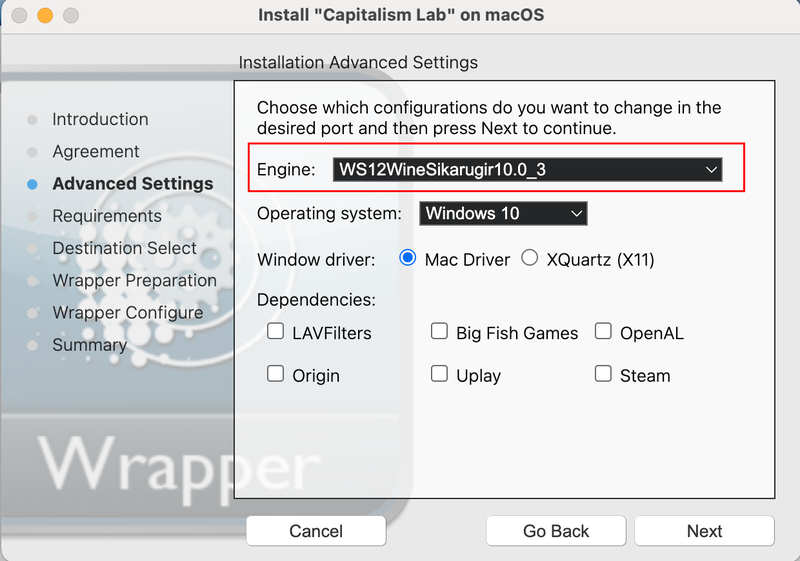
The following window will appear, asking you to select the “Engine”.
If you encounter an error while installing Porting Kit, please refer to the troubleshooting guide at the link below:
Porting Kit Troubleshooting GuideLog in to Capitalism Lab
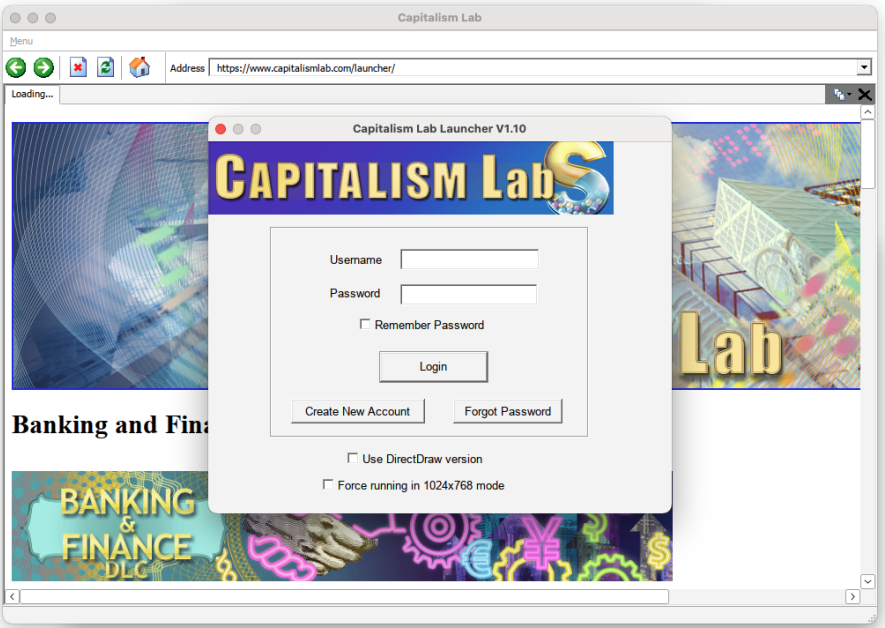
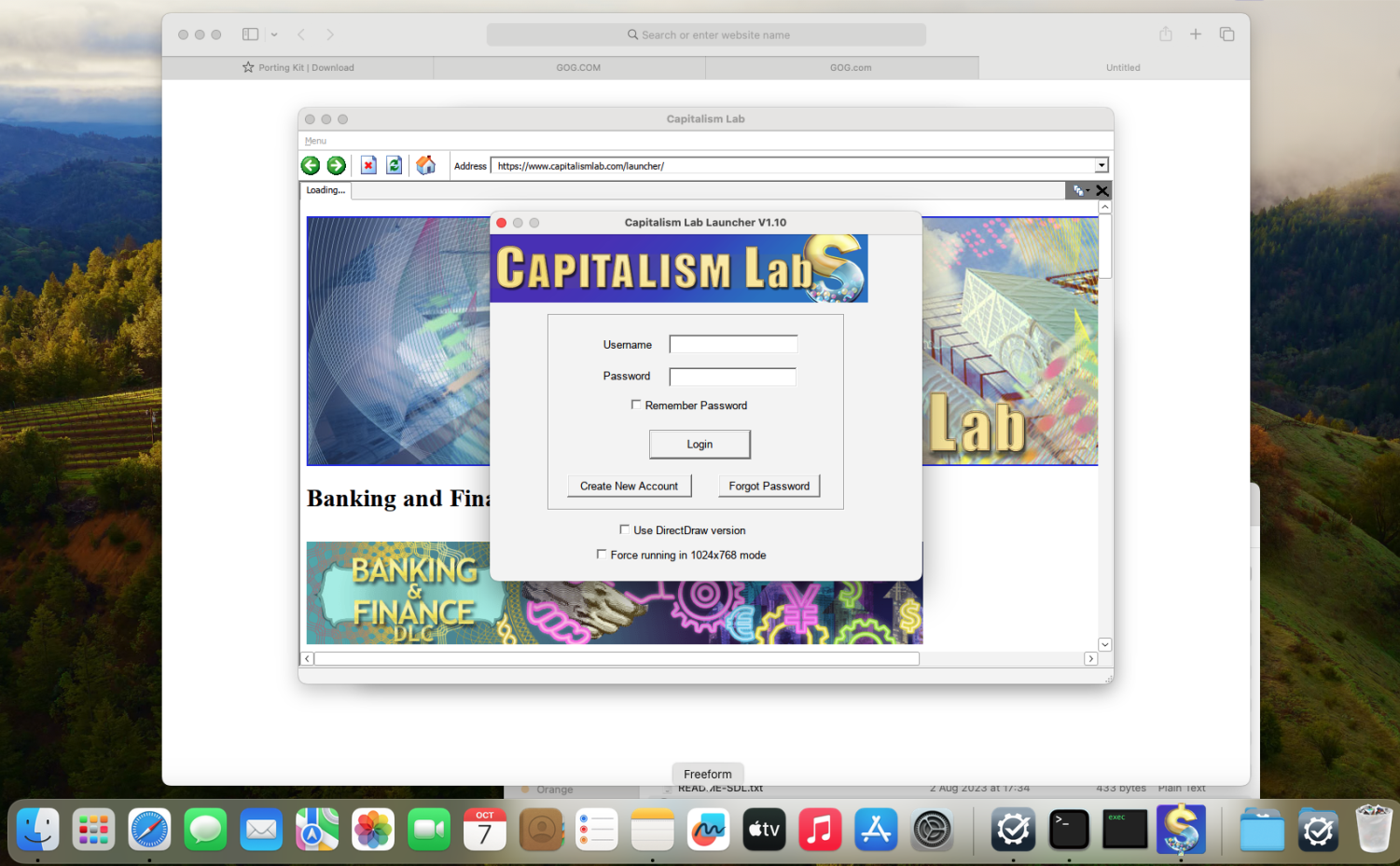
The game will launch. Enter your Capitalism Lab username and password.
Exit Capitalism Lab
The installation is not complete yet. Please quit Capitalism Lab by clicking the Exit icon in the bottom-right corner of the main menu.

Select CapStart.exe
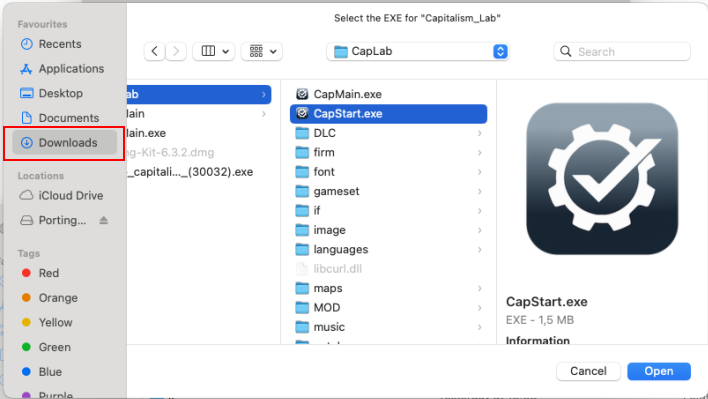
The Porting Kit installer will ask you to select the game’s EXE file. Navigate to your “Downloads\Capitalism Lab” folder and choose “CapStart.exe,” then click “Open.”
Installation complete
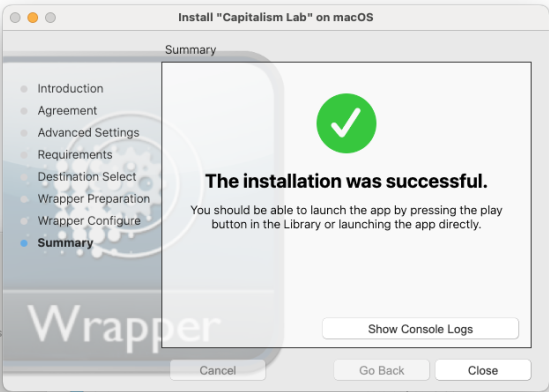
You should see a message confirming successful installation.
Running Capitalism Lab After Installation
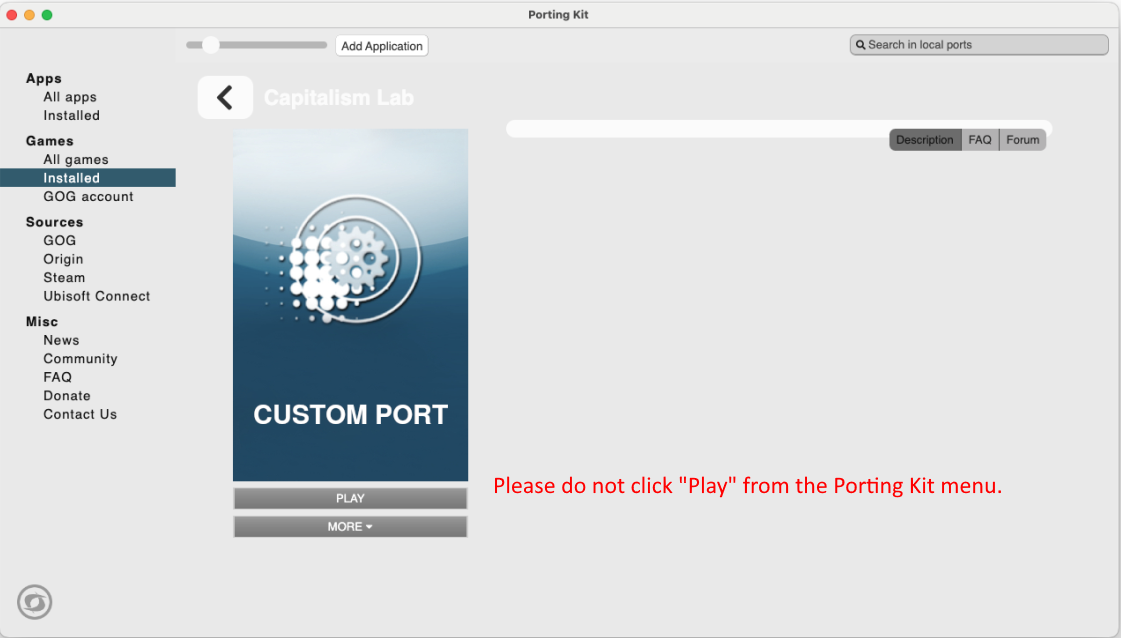
Launch the game from CapStart.exe
Instead, click the “CapStart.exe” file in the “Downloads/Capitalism Lab” folder whenever you want to run Capitalism Lab.
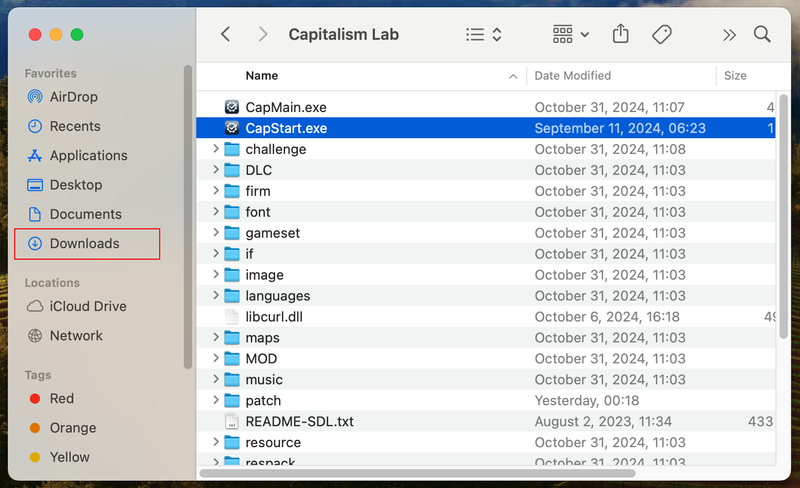
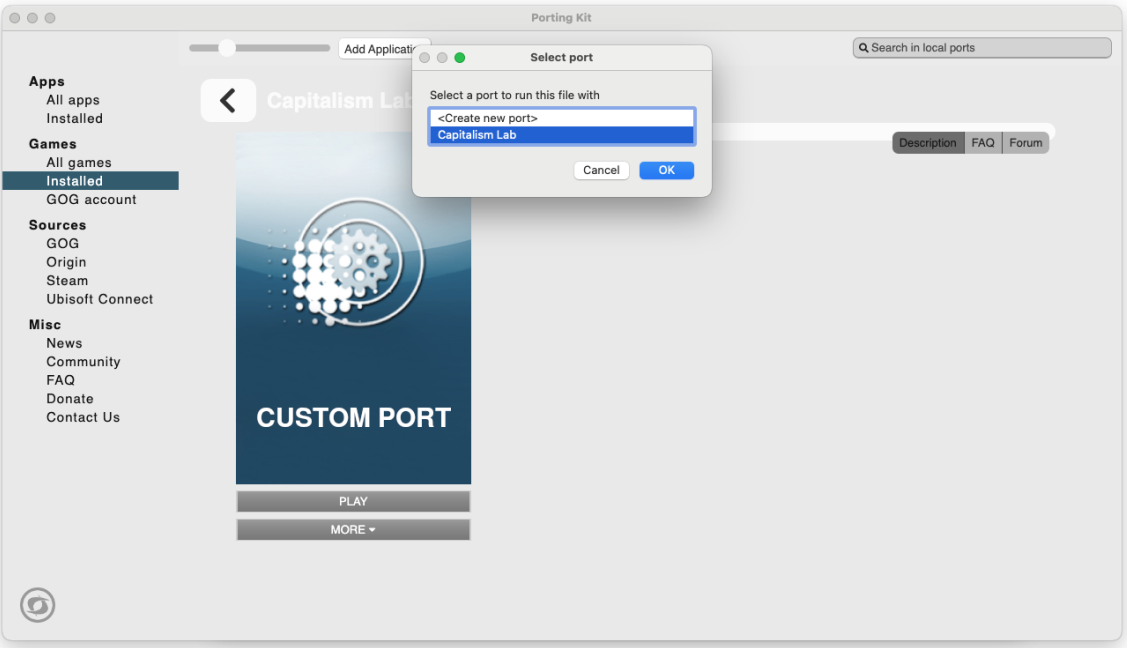
Choose the Capitalism Lab port
When you click “CapStart.exe,” a window will appear as shown below. Select “Capitalism Lab” and click [OK] for the game to run successfully.
Do not use the DirectDraw version
Please note that you must NOT select the “Use DirectDraw version” option in the Capitalism Lab launcher, as it will prevent the game from running on Mac.