

Export Data to Files with Automated Recurring Export Options
When the Banking and Finance DLC is enabled, you can export the corporate income statements, balance sheets, and corporation lists as CSV files that can be opened in Excel.
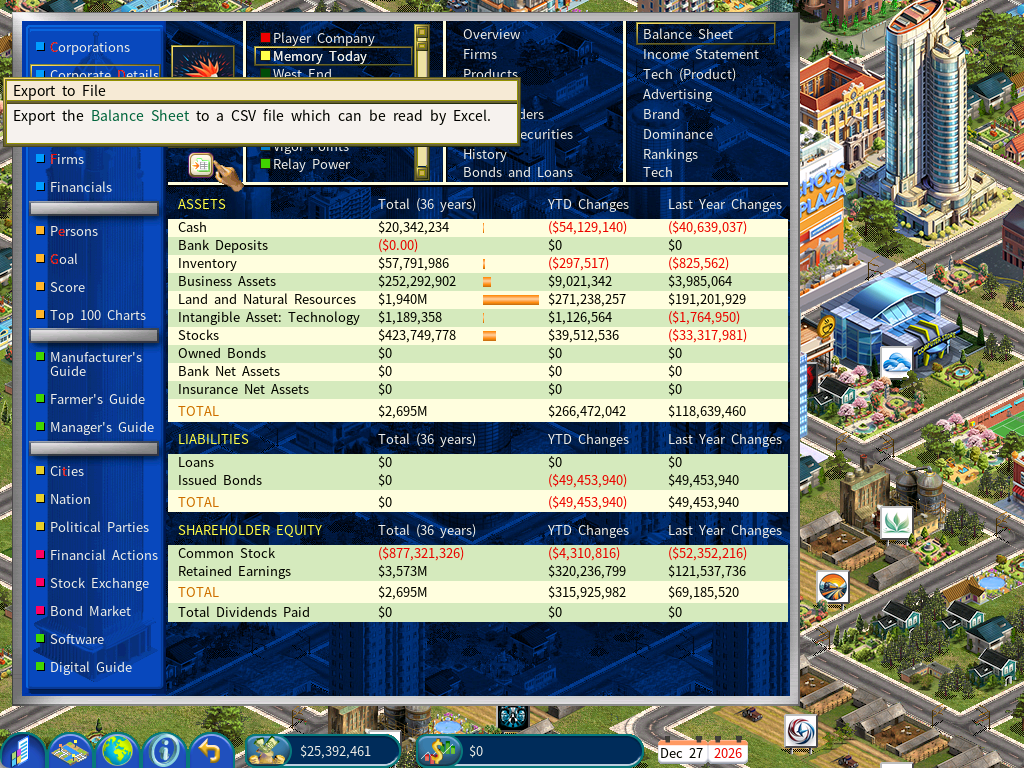
Export Balance Sheet
To do this, open the Corporation Details report, navigate to the Balance Sheet page, and click the Export to File icon shown in the screenshot.
Now you can use Excel or OpenOffice to open the exported CVS file.
OpenOffice can be downloaded for free from https://www.openoffice.org/
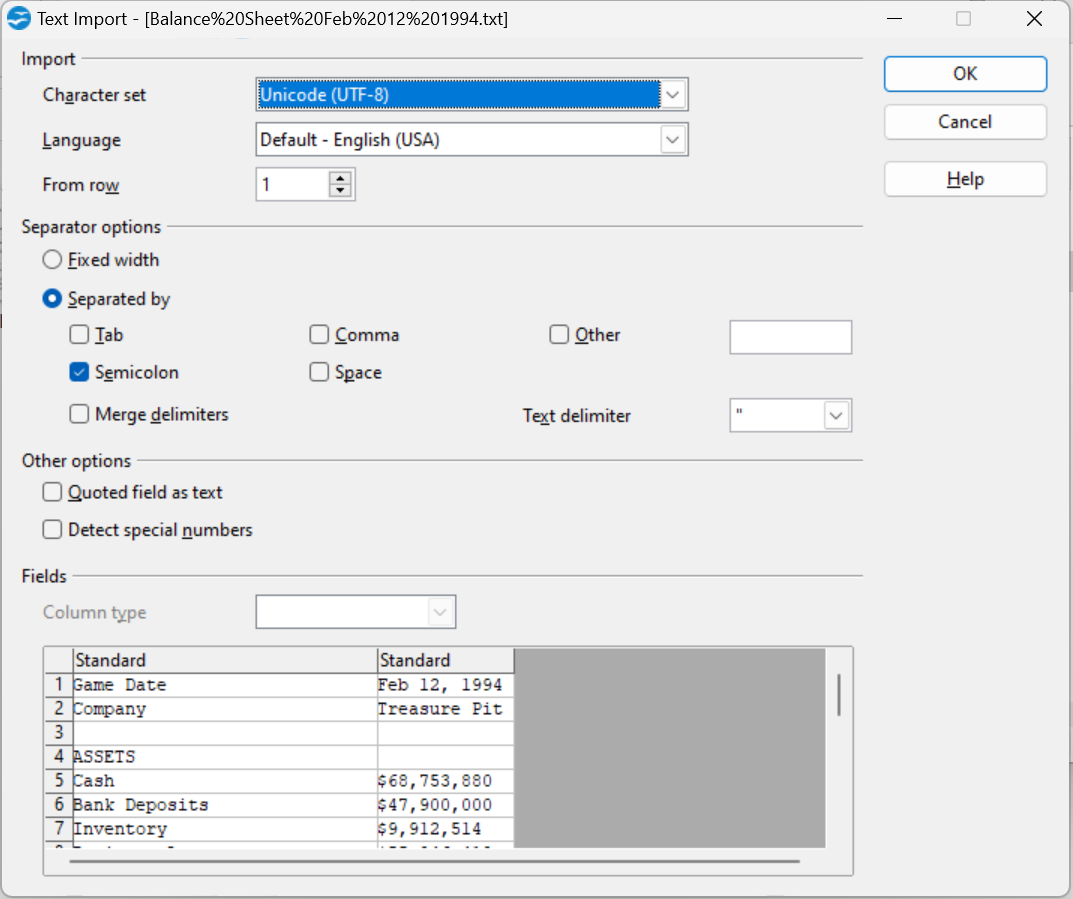
On OpenOffice’s import screen, select Separated by “Semicolon”, as shown below.
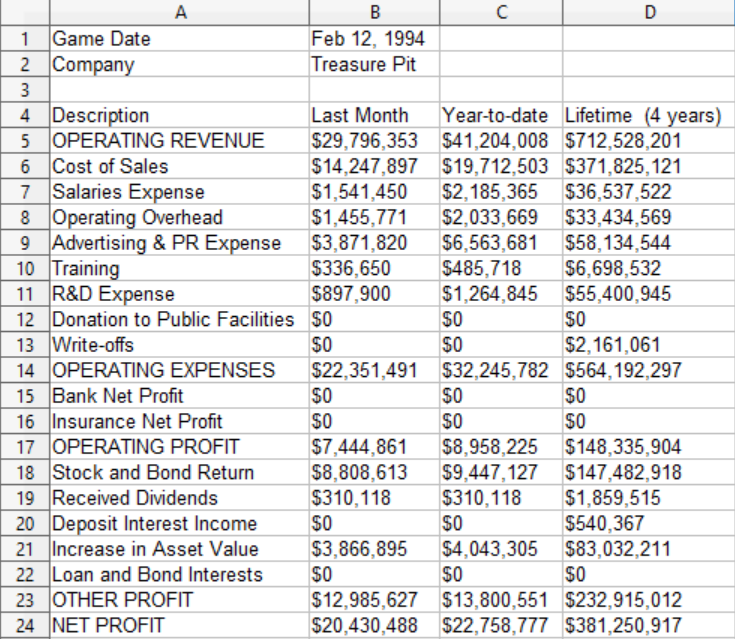
The imported spreadsheet will look like the following.
Export Income Statement
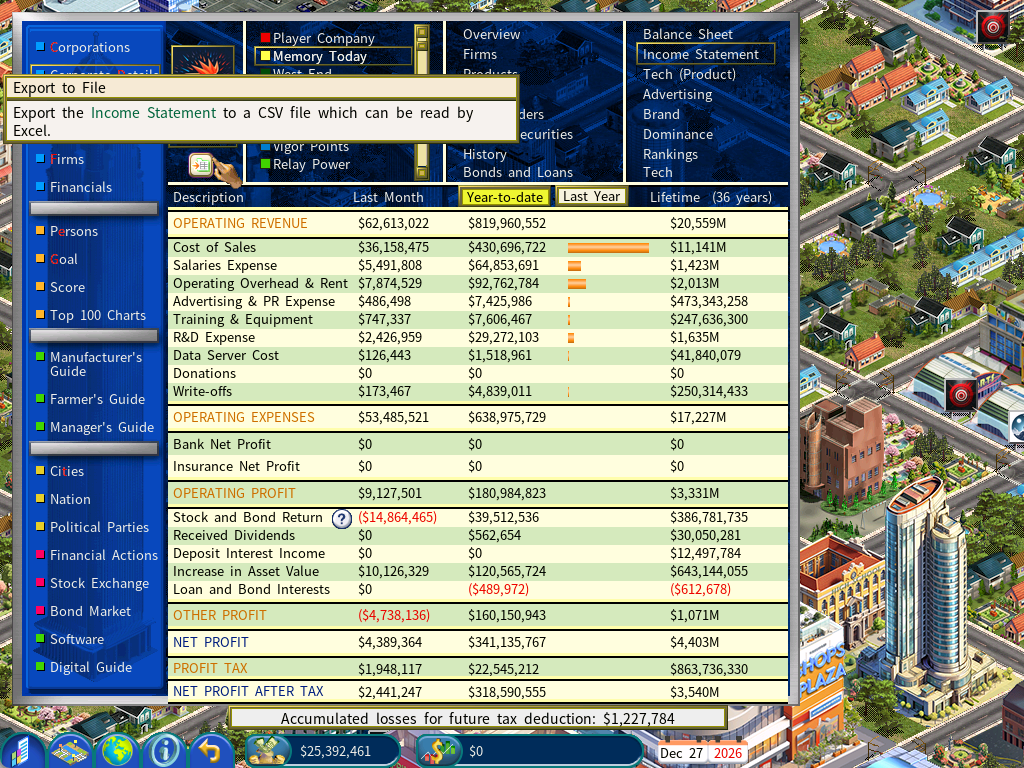
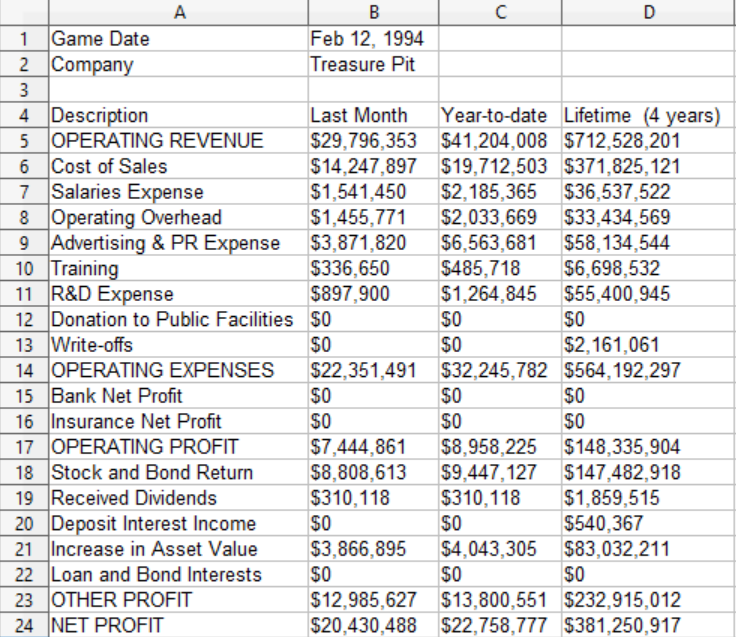
Likewise, to export the Income Statement, open the Income Statement page and click on the Export to File icon.
Here is an example of an exported income statement.
Export The List of Corporations
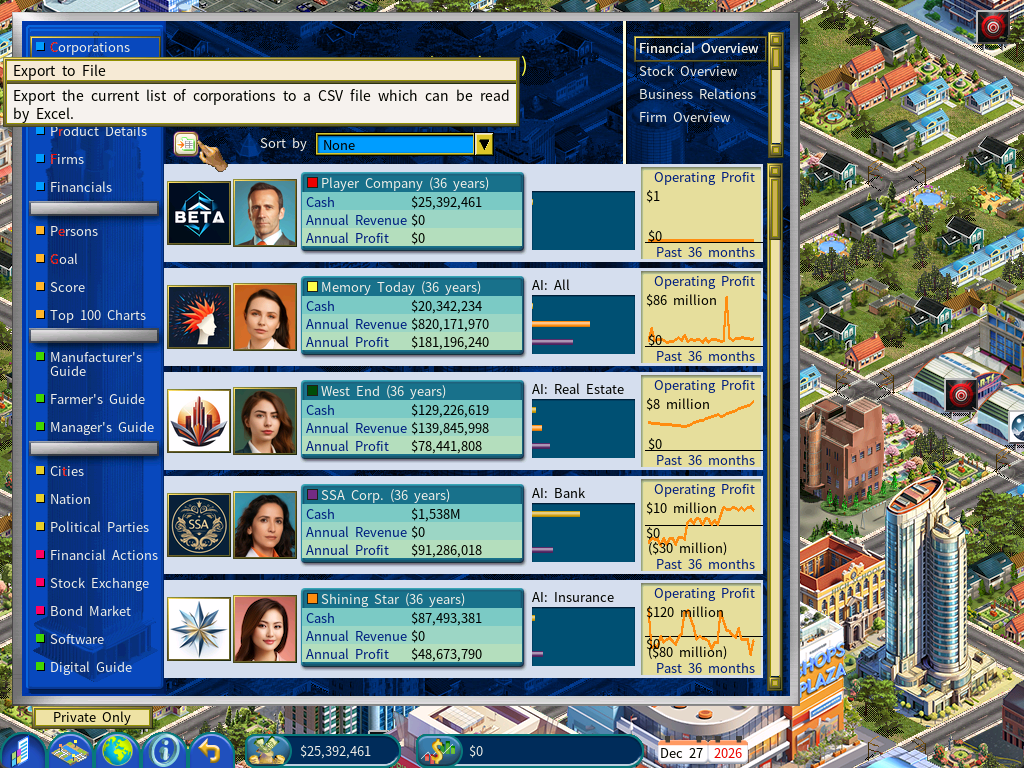
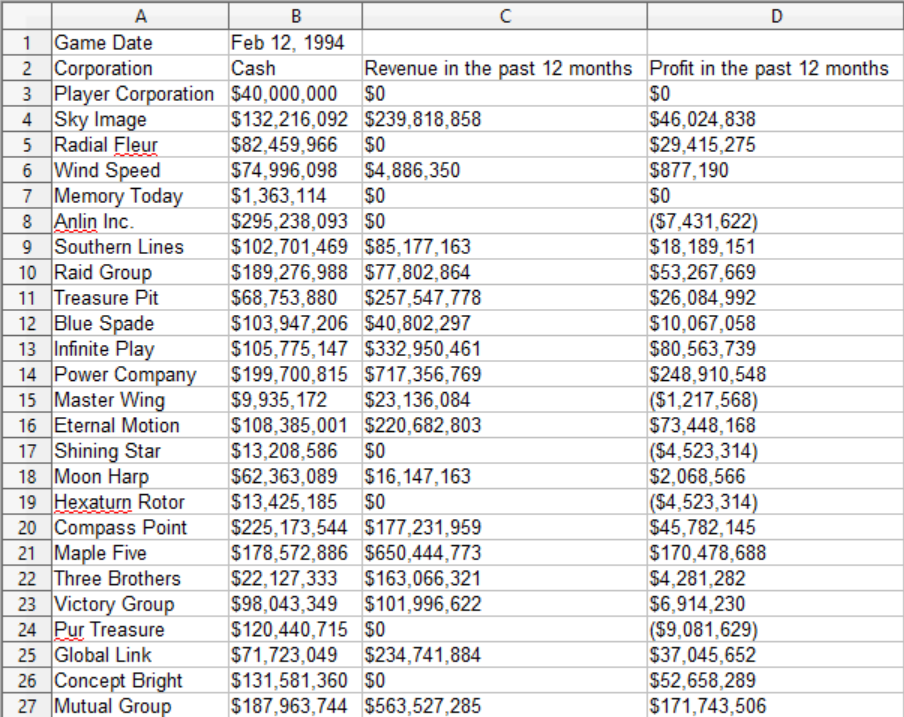
You can also export the current list of corporations by opening on the Corporations report and clicking on the Export to File icon, as shown below.
Automated Recurring Data Export Options for the Banking and Finance DLC
Capitalism Lab players who own the Banking and Finance DLC now have powerful new tools to automate and customize the export of financial data. The latest update introduces automated recurring data exports with configurable scope and frequency — a highly requested feature that makes it easier than ever to track your empire’s performance over time, analyze trends, or integrate game data into external tools like Excel.
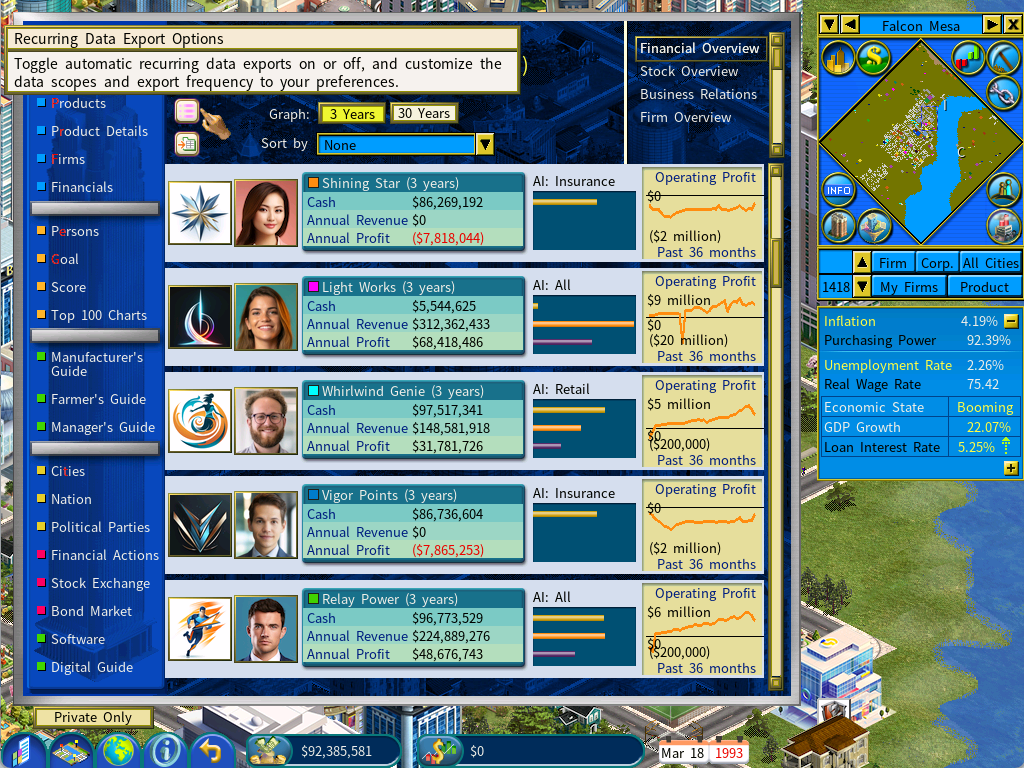
A new Recurring Data Export menu is now available directly from the Information Center, allowing you to set:
- Which companies to include (scope)
- How often the data should be exported (frequency)
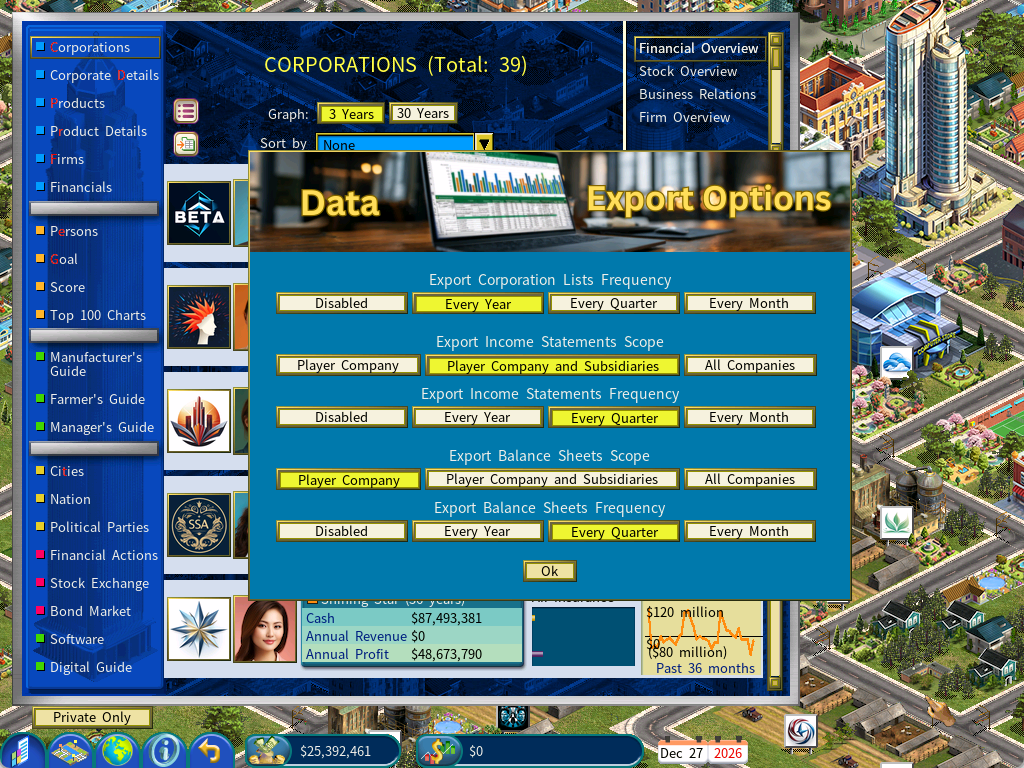
For example:
- Automatically export the financial summary of all companies once per year
- Export income statements and balance sheets for your company and all subsidiaries every quarter
Organized Export Folders for Every Game
Each save game now has its own dedicated export directory:
<CapLab game data>Export<Game Unique ID>
This ensures clean separation between different playthroughs, scenarios, or experiments.
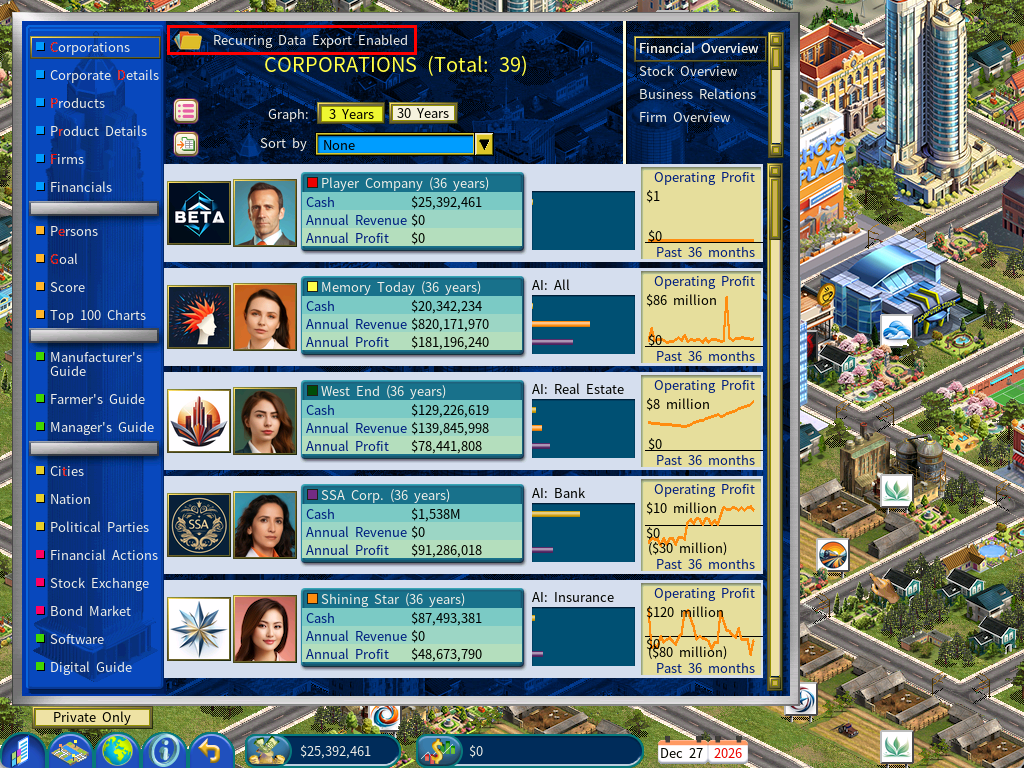
You can instantly open the correct folder by clicking the Open Folder icon in the top‑left corner of the Corporations report.
Using a Script
If you prefer to set recurring data export options via a script, you can configure them using the following script commands:
[BANKING AND FINANCE DLC]
Export Income Statement Scope=<Player Company | Player Company and Subsidiaries | All Companies>
Export Income Statement Frequency=<Every Year | Every Quarter | Every Month>
Export Balance Sheet Scope=<Player Company | Player Company and Subsidiaries | All Companies>
Export Balance Sheet Frequency=<Every Year | Every Quarter | Every Month>
Export Corporation List Frequency=<Every Year | Every Quarter | Every Month>
Example:
[BANKING AND FINANCE DLC]
Export Income Statement Scope=Player Company and Subsidiaries
Export Income Statement Frequency=Every Quarter
Export Balance Sheet Scope=All Companies
Export Balance Sheet Frequency=Every Year
Export Corporation List Frequency=Every Month
These new Data Export Improvements upgrade Capitalism Lab into an even more powerful simulation platform. Whether you’re a data enthusiast or a player who simply wants deeper insight into your empire, these new features deliver greater flexibility and precision.