

How To Translate Game Text (version 7.x or before)
This is the older procedure, kept for legacy installations. For current versions of Capitalism Lab, see How To Translate Game Text.
The Translate folder
Capitalism Lab looks for translation files in the Translate folder under the main Capitalism Lab folder. If it does not exist yet, create it.
To find your Capitalism Lab folder: right-click the program icon in Windows, choose Properties, then Open File Location.
Basic translation files
Before adding any translated text, copy every file from Capitalism Lab\Text into Capitalism Lab\Translate:
| File | What it holds |
|---|---|
T_game.txt |
The main in-game text. |
T_basic.txt |
Calendar months and some interface text. |
Help.txt |
The help text. |
Gm_help.txt |
Help text for the new game setup menu. |
Then replace the original text with your translation.
Do not change the codes or control characters. Anything in all upper-case is reserved for the game engine.
Text editor and encoding
We recommend Notepad++, a free editor available from notepad-plus-plus.org.
Capitalism Lab uses Unicode. After opening a file in Notepad++, select Encoding → UTF-8 (without BOM).
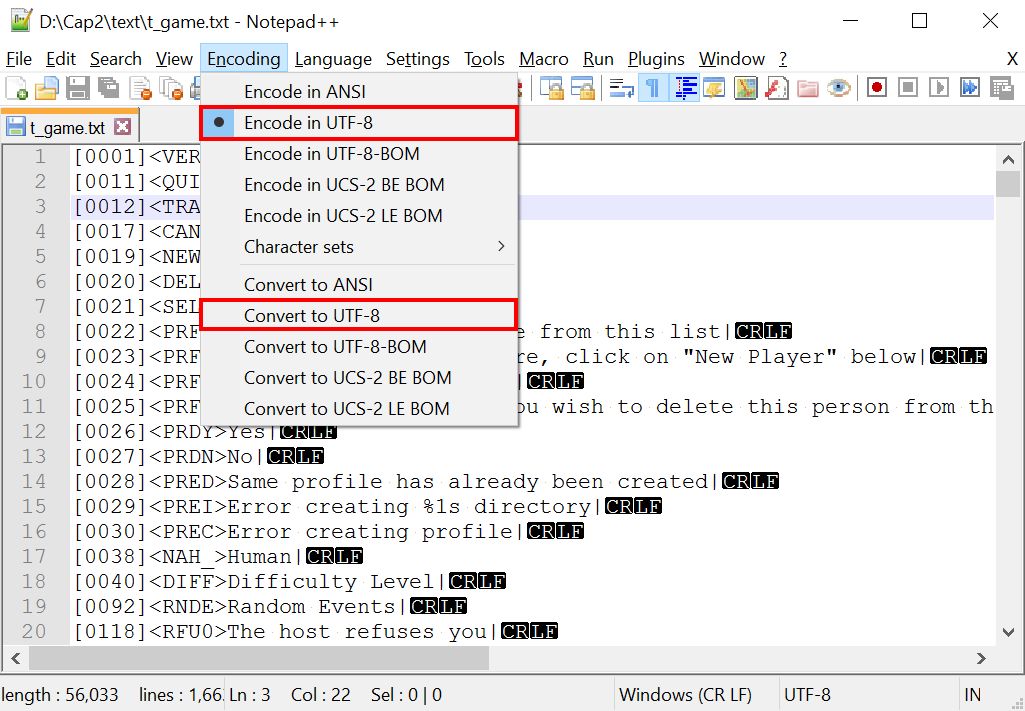
If you already edited a file in another editor that did not use UTF-8 without BOM, open it in Notepad++ and choose Encoding → Convert to UTF-8 (without BOM).
If the first line of your TRANSLATE.TXT is untranslated in game, the encoding is almost always the cause — it was not saved as UTF-8 without BOM.
Font
Translating into a language that does not use standard alphabetic characters — an Asian language, for instance — means supplying a font.
We recommend Google’s Noto font, free from google.com/get/noto and released under Apache License 2.0.
Capitalism Lab accepts OpenType (.OTF) and TrueType (.TTF) files. Copy one into Capitalism Lab\Translate and add a text file called FONT.TXT in the same folder.
FONT.TXT holds a single line naming the font to load:
Font=<font file name>For example:
font=Noto.otfWrite it yourself, or copy the default from Capitalism Lab\Font\Font.txt and edit it.
Asian languages
For an Asian language, add this line to FONT.TXT as well, below the Font= line, so the game displays the text properly:
Asian language=yesThe additional translation file
The basic files above do not cover all in-game text. The rest goes in a file you create yourself.
Create Translate.TXT with a text editor, in this syntax:
<Original Text>|
<Translated Text>|
~
<Original Text>|
<Translated Text>|
~| Character | Use |
|---|---|
| |
Always at the end of each text line. |
~ |
Between text blocks. |
% |
A variable — text that is not translated. |
For example:
The stock price rose from % to %|
Le prix des actions a augmenté de % à %|
“The stock price rose from $10.00 to $11.00” becomes “Le prix des actions a augmenté de $10.00 à $11.00”. Use % for anything that should pass through untranslated — company names, person names, product names, prices and numbers.
Two storage methods for translation files
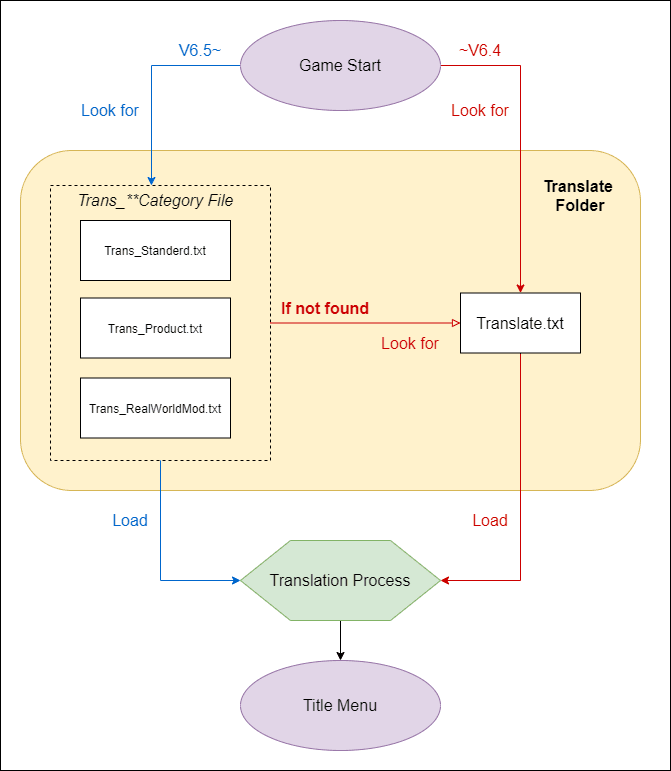
From version 6.5.00 the game supports two, which is what allows multiple translation files.
| Method | Files in the TRANSLATE folder | Loaded by |
|---|---|---|
| Old — a single file | Translate.TXT alone. |
Versions older than 6.5.00 |
| New — multiple files | Several files, each prefixed Trans_. |
Version 6.5.00 and later |
For example, under the new method:
Trans_Standard.txt— standard game text.Trans_RealWorldMod.txt— text for the RealWorld MOD.
The game tries the new method first and falls back to TRANSLATE.TXT if it finds nothing. That is what lets one language pack contain both, supporting old and new versions of the game at once.
This diagram by contributor “torajiro” shows the loading process:
Distributing your translation files
Package everything under Capitalism Lab\Translate as a ZIP or RAR and post it on the Game Text Translation by Users forum.
The folder should contain:
T_game.txtT_basic.txtHelp.txtGm_help.txtTranslate.txt
And where the language uses non-alphabetic characters, add:
Font.txt- An OpenType font file (
.OTF)
Avoiding incorrect placement
Translated .TXT files belong ONLY in \TRANSLATE, never in \TEXT.
The reason matters: when the dev team adds new text to t_game.txt and your translation does not have it yet, the game falls back to the original in \TEXT. Overwrite that original with a translated copy and there is nothing to fall back to — the game displays an error instead.
Image files for translation
To translate text on images such as the tutorial banners, these versions are clear of any text:
Alternatively, PSD files of the banners with preset fonts, prepared by contributor “torajiro”:
Tutorial and Scenario Banners as PSD FilesDiscord channel
Join the translation Discord channel, organized by user “paulwoman”, to discuss with experienced translators.
Questions
Post them on the Game Text Translation by Users forum.